Before starting a job, make sure the machine has been Homed and Work Zero set.
| Image |
Instructions |
 |
- WorkBee Control has only been tested on Google Chrome
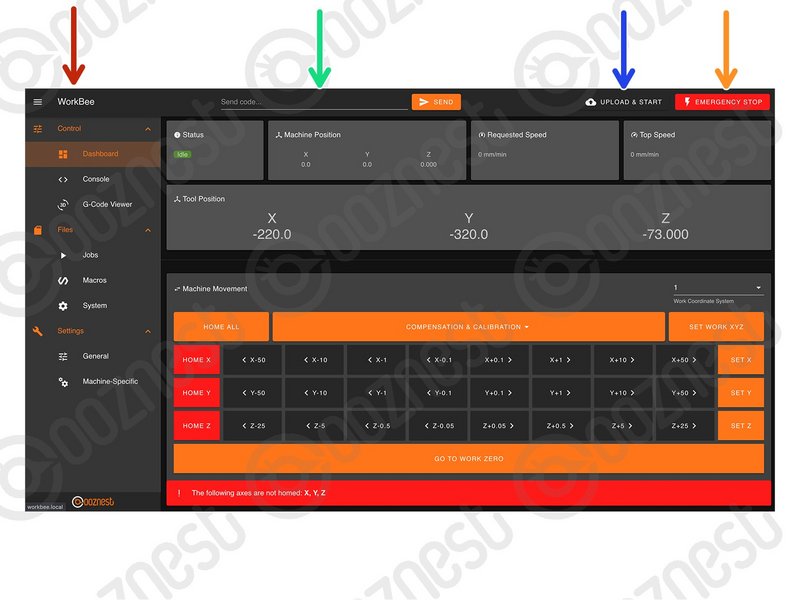
- Red Arrow: The Name of the machine.
- Green Arrow: Send Manual G-Code commands.
- Blue Arrow: To upload and start a job.
- Orange Arrow: Triggers a software emergency stop.
|
Advanced Users: The machine name can be changed by adding the command M550 "Machine Name" to config-user-settings.g
| Image |
Instructions |
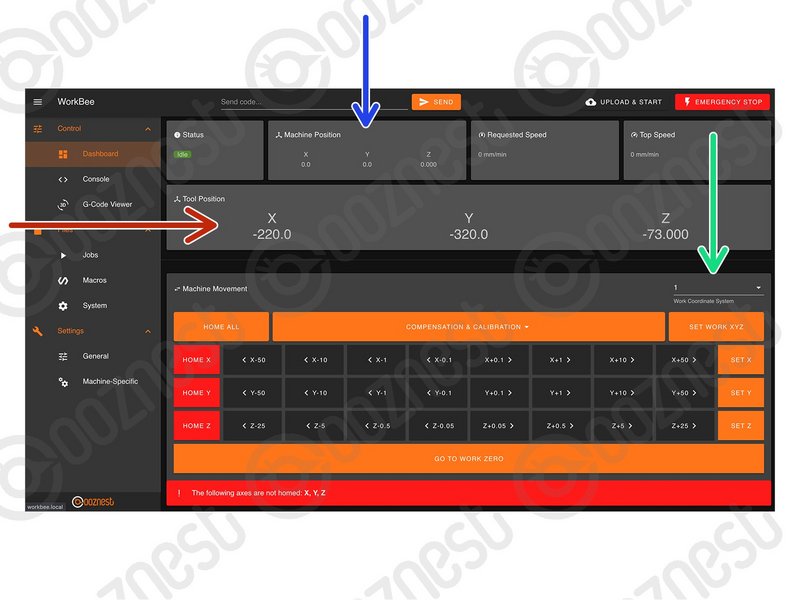 |
- Blue Arrow: Current position in Machine Coordinates
- Red Arrow: Current position in Work Coordinates.
- Green: The Work Coordinates displayed are determined by the Work Coordinate Selection dropdown.
|
Advanced Users: To find out the machine positions of all Work Coordinates open File Management > System > config-override.g
Advanced Users: You can directly edit the machine positions of the Work Coordinates in config-override.g and save it.
| Image |
Instructions |
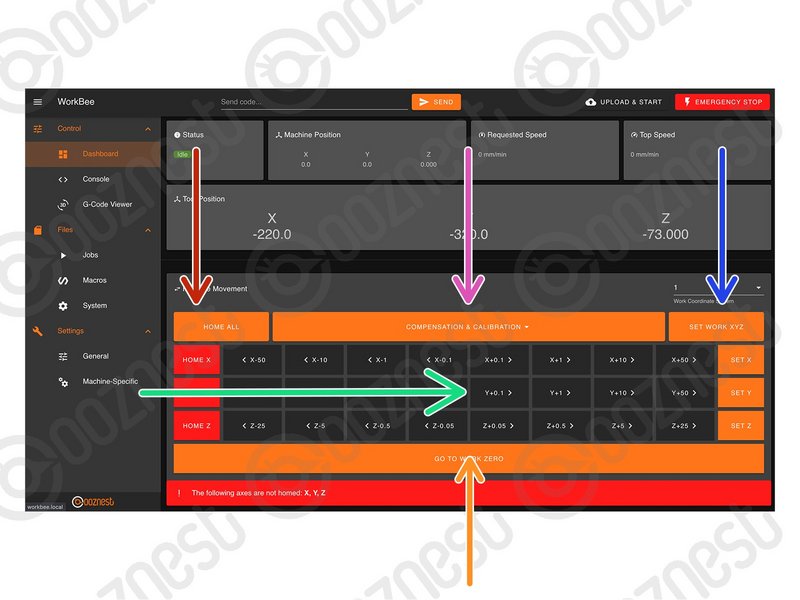 |
- Red Arrow: Used to home the machine. You need to home the machine when it is turned on.
- Green Arrow: Used to jog the machine around the work area. Right-click to modify distance.
- Blue Arrow: Used to set the Work Zero position for the selected Work Coordinate System.
- Orange Arrow: Move the machine to the Work Zero position of the currently selected Work Coordinate System.
- Pink Arrow: The Compensation and Calibration buttons allows a probe to measure the overall work area flatness. Height maps are useful for milling PCB's. More information on using these buttons can be found here: https://docs.duet3d.com/meshbed
|
When homing an individual axis, it will always home the Z first to insure it is clear of any work piece.
Advanced Users: The jogging feedrate can be modified under Settings > Machine Specific > 'Feedrate for move buttons (mm/min)'
| Image |
Instructions |
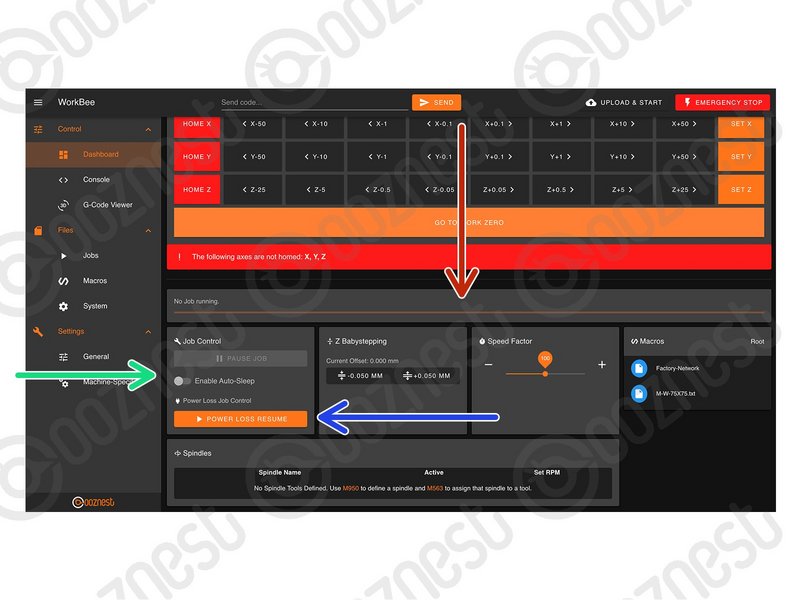 |
- Red Arrow: When running a job, the progress of the job will be displayed here along with the percentage complete and estimated time remaining.
- Green Arrow: When running a job, pause, resume, & cancel buttons will show here. When pausing a job it will save the current position and home the machine.
- Blue Arrow: A controlled power off can also be performed in the middle of a job. This will pause, home and save the current job position, allowing it to be continued at a later time.
- Blue Arrow: Use this button to resume a job after a controlled power off.
- Blue Arrow: This button can also be used to resume a job after an unexpected power loss.
|
Advanced Users: 'Enable Enable Auto-Sleep' allows a set of pre-defined commands to be run after a job is completed. These commands are defined under File Management > System > Sleep.g
Z Babystepping will move the whole job downwards by same amount, including Z-Axis Safe Heights.
| Image |
Instructions |
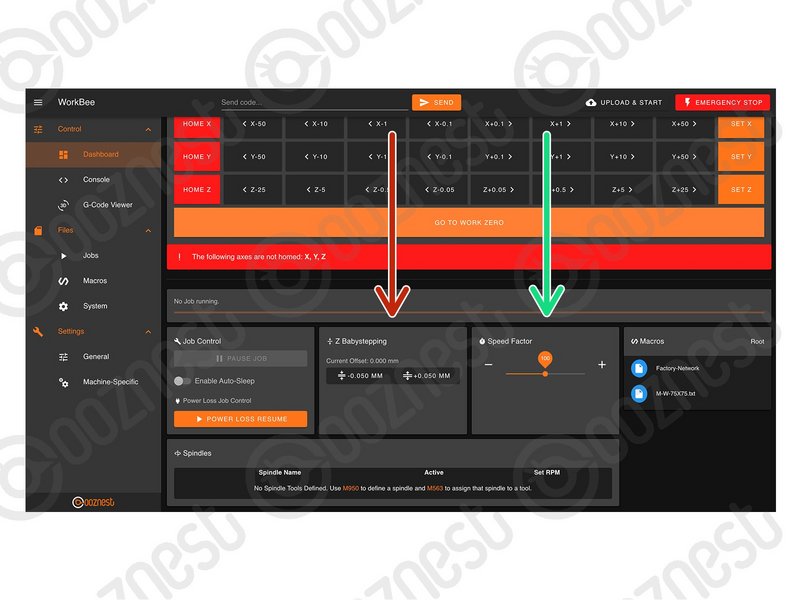 |
- Red Arrow: When running a job these buttons allow micro-adjustment of the Z-Axis
- Red Arrow: For example if the job is not cutting deep enough, these buttons can be used to shift the job downwards.
- Green Arrow: A slider to speed up or slow down the job. The speed is represented by a percentage, with 100% being the normal speed.
|
| Image |
Instructions |
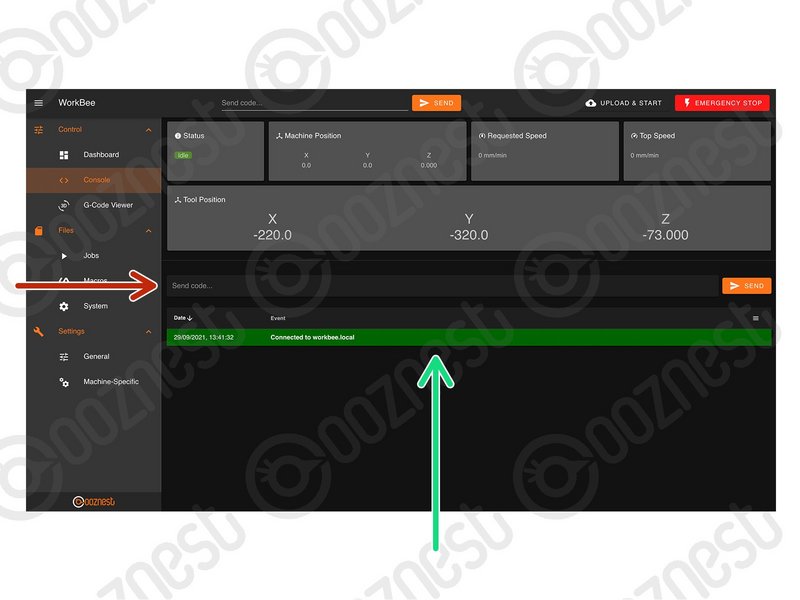 |
- Red Arrow: Send Manual G-Code commands.
- Green Arrow: Important information outputted from the WorkBee will be displayed here.
|
| Image |
Instructions |
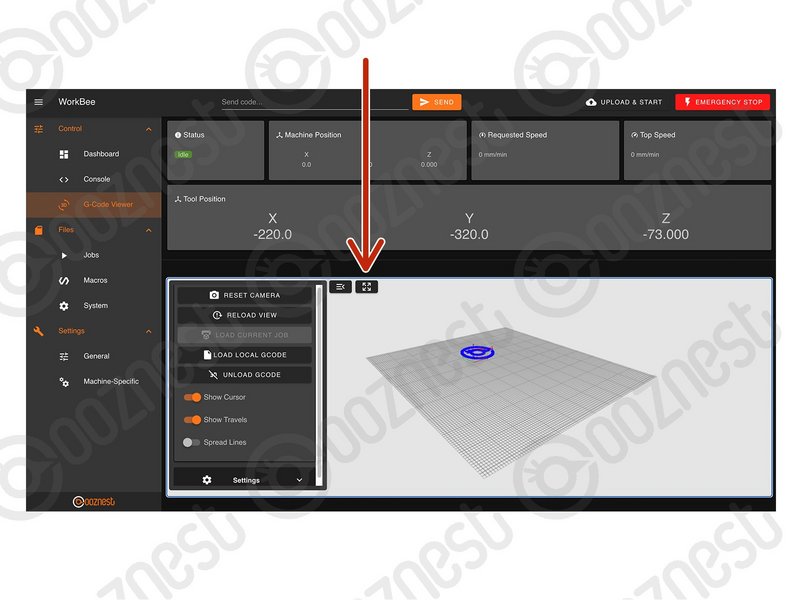 |
- Red Arrow: Makes the G-Code Viewer Fullscreen.
- Use the mouse scroll wheel to zoom in and out.
- Mouse Left-click to Orbit.
- Ctrl + Mouse Left-click to Pan.
|
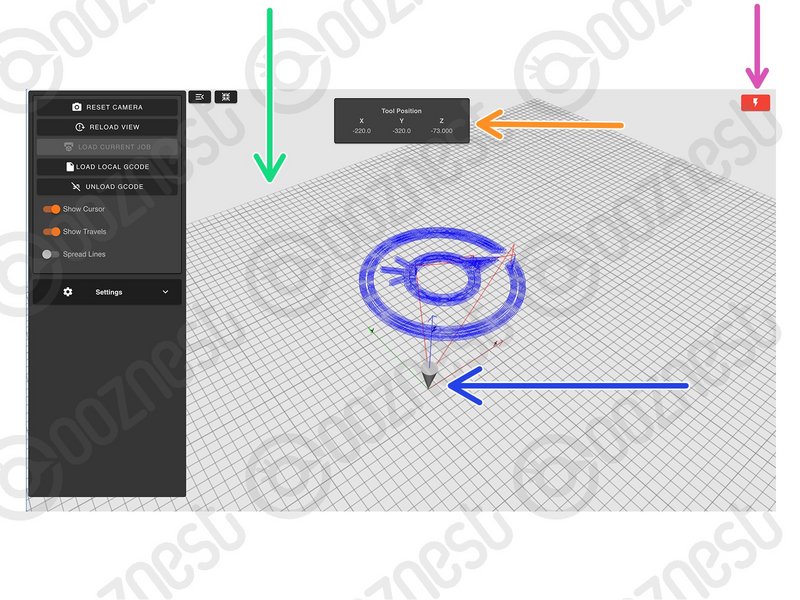 |
- Green Arrow: The grid shows the machines working area.
- Blue Arrow: The X, Y, and Z-Axis markers show where the selected Work Zero is located in the machines working area.
- Orange Arrow: Current position in Work Coordinates.
- Pink Arrow: Software emergency stop.
|
| Image |
Instructions |
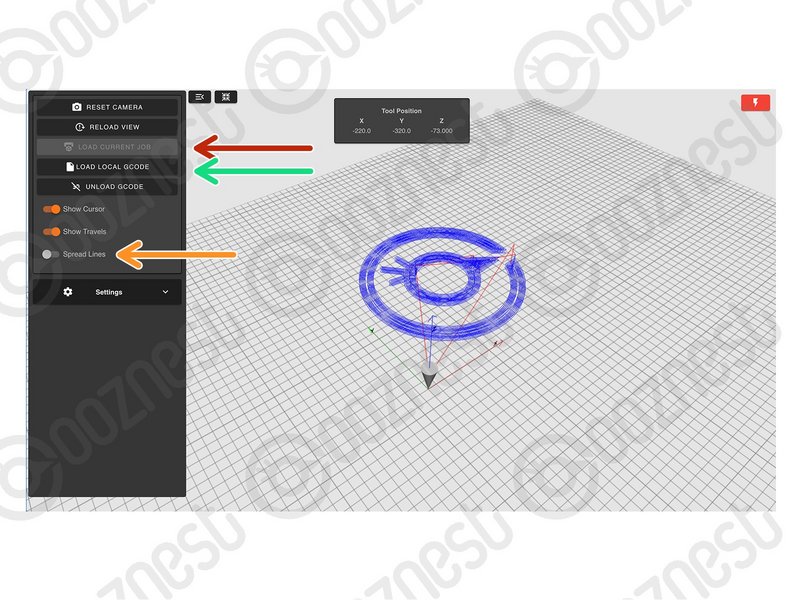 |
- Red Arrow: Loads the current Job.
- Green Arrow: Loads a local file from your computer.
- Orange Arrow: This will elongate the spaces between passes. It can make files much easier to view.
|
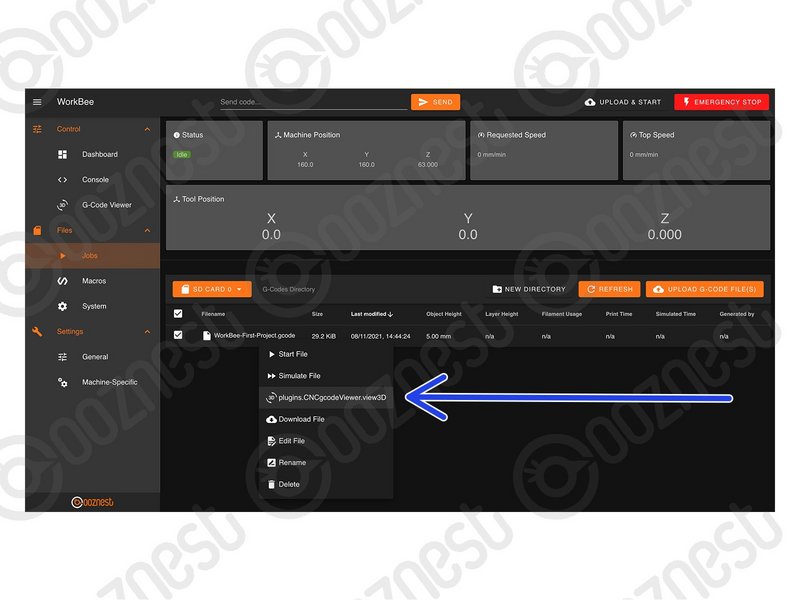 |
- Blue Arrow: If a job is running, you can load it locally by right clicking the file under File Management > Jobs and press 'plugins.CNCgcodeViewer.view3D'
|
When loading the current job, it will only displayed the line for the progress thus far.
When loading a local job, it will display the whole job, and progress thus far in green.
| Image |
Instructions |
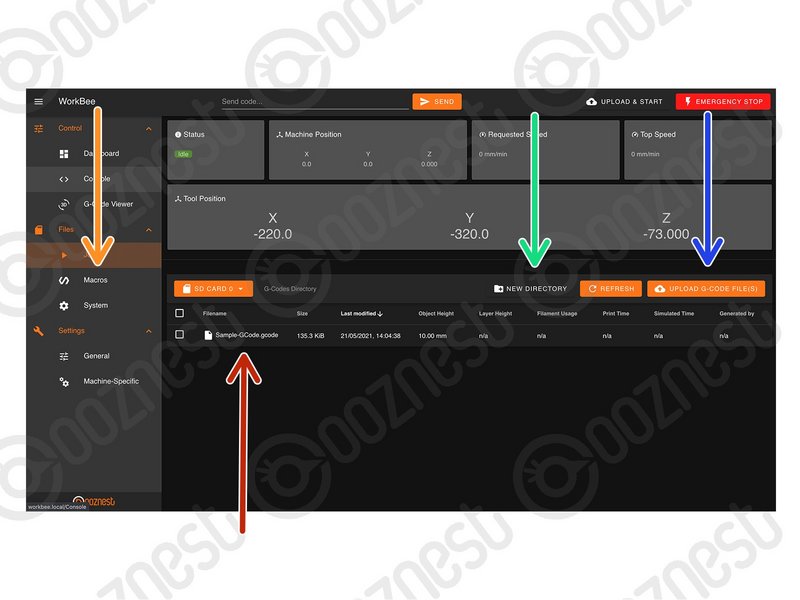 |
- Red Arrow: Clicking on a Job will run the Job.
- Red Arrow: Right clicking on a Job will also allow the file to be run, and in addition: Simulate, Download, Edit, Rename, and Delete.
- Green Arrow: Create a sub-folder
- Blue Arrow: Upload a job to the current folder
|
The Macros page is similar the Jobs page.Macros are different to jobs in that they are a sequence of commands which are regularly run. For example a macro could be created that would move the head to the machine center instead of typing manual commands each time.
| Image |
Instructions |
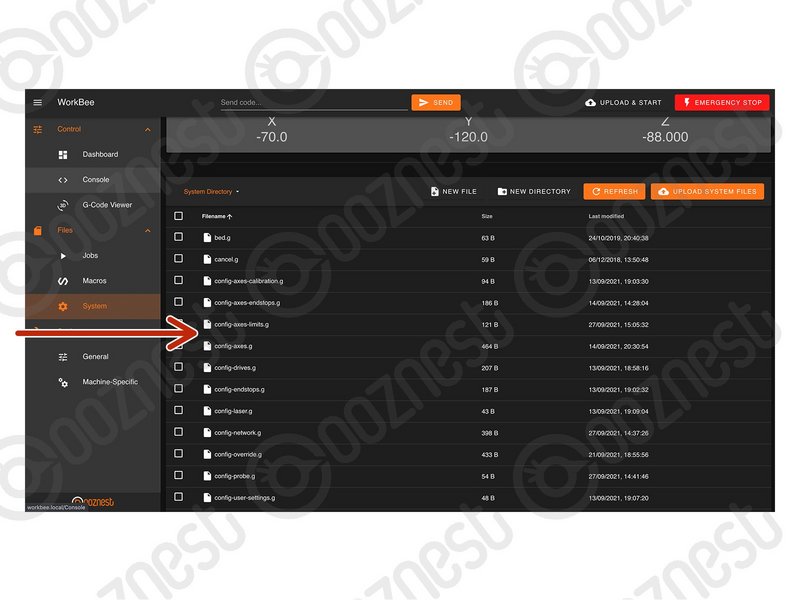 |
- This contains all the System files.
- Anything with 'config' in the name is run at startup.
- We advise putting any custom settings in 'config-user-settings.g'
- homeall.g, homex.g, homey.g, and homez.g contain the commands that are executed when the homing buttons are pressed.
- workzero.g contains the commands that are executed when 'Go To Work Zero' is pressed.
|
| Image |
Instructions |
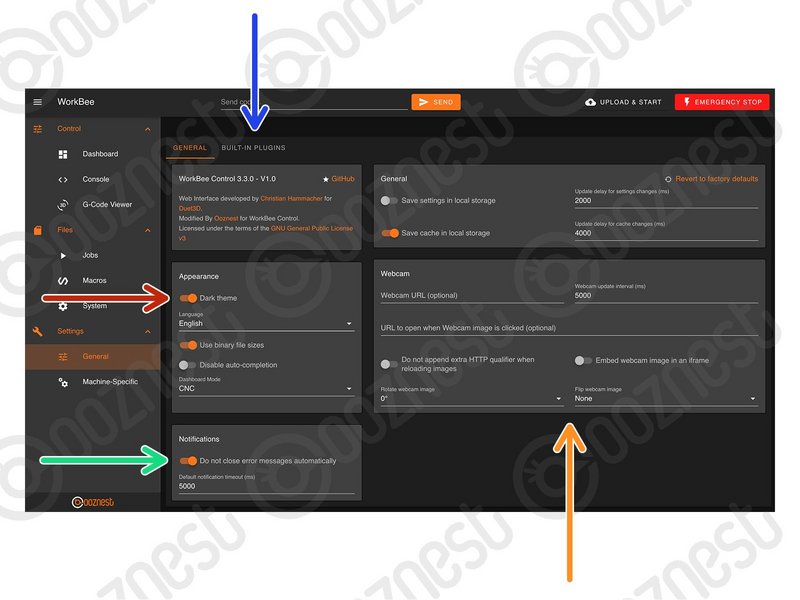 |
- Red Arrow: Change Theme Colour
- Green Arrow: Autoclose Notifications
- Blue Arrow: Manage plugins packaged within WorkBee Control.
- Orange Arrow: Configure Webcam. See Duet's Guide.
|
| Image |
Instructions |
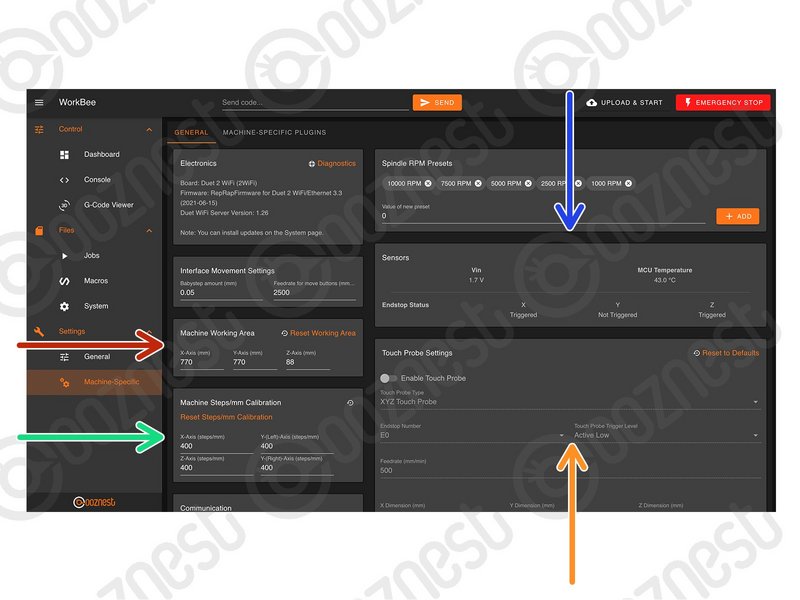 |
- Red Arrow: Change machine working area (No restart required)
- Green Arrow: Change machine Steps/mm (No restart required)
- Blue Arrow: Sensor statuses
- Orange Arrow: Touch probe settings. See WorkBee XYZ Touch Probe Assembly Guide
|