| Image |
Instructions |
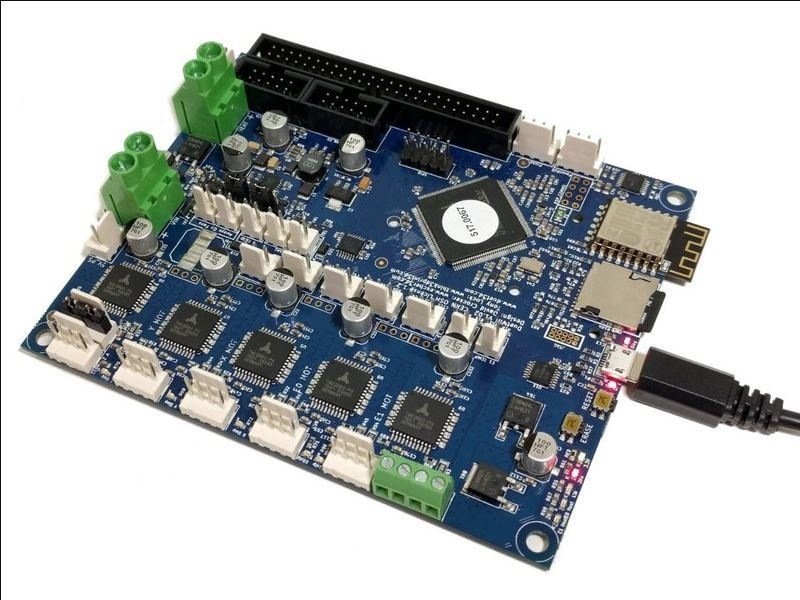 |
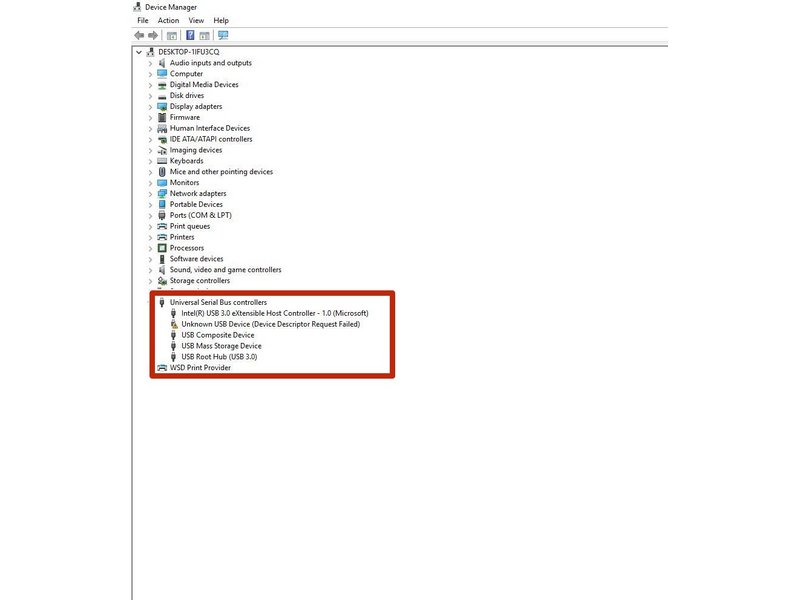
- Connect the Controller to your Mac with the USB cable provided. Do not connect the power supply at this stage.
|
| Image |
Instructions |
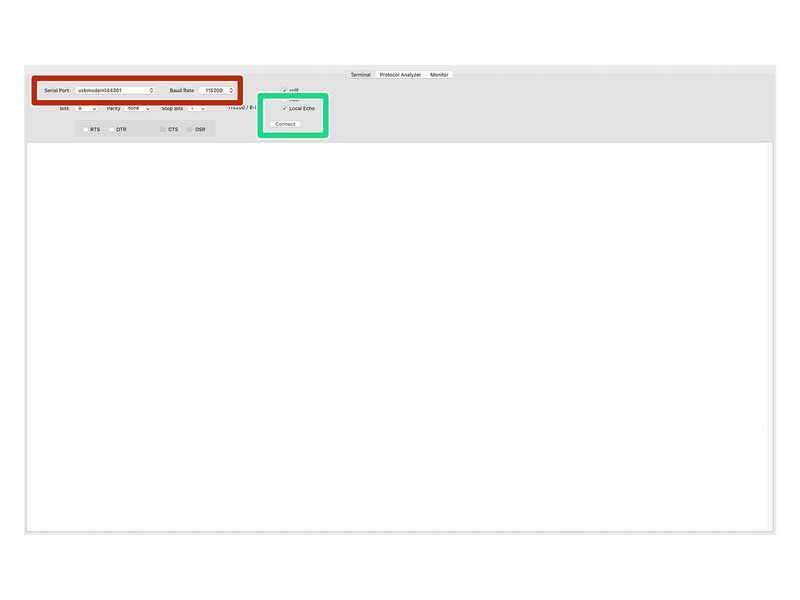 |
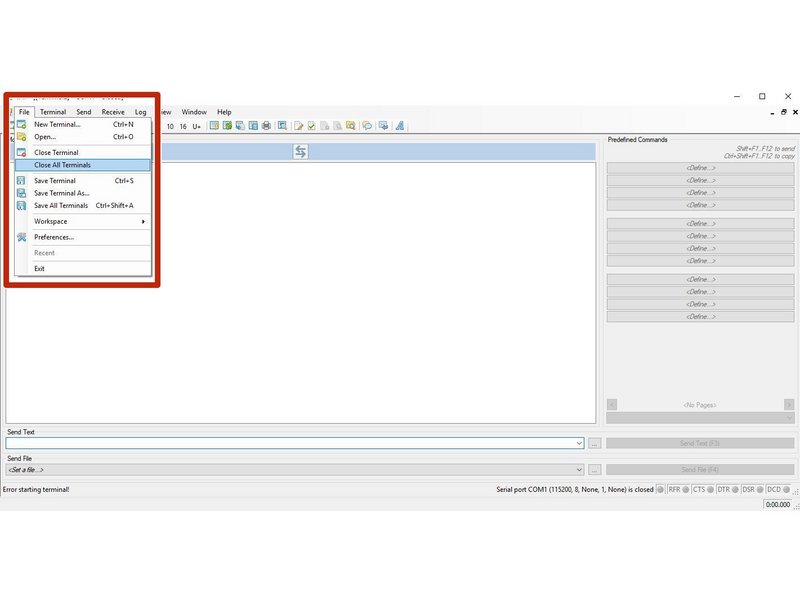
- Download and Install SerialTools from the Apple App Store here.
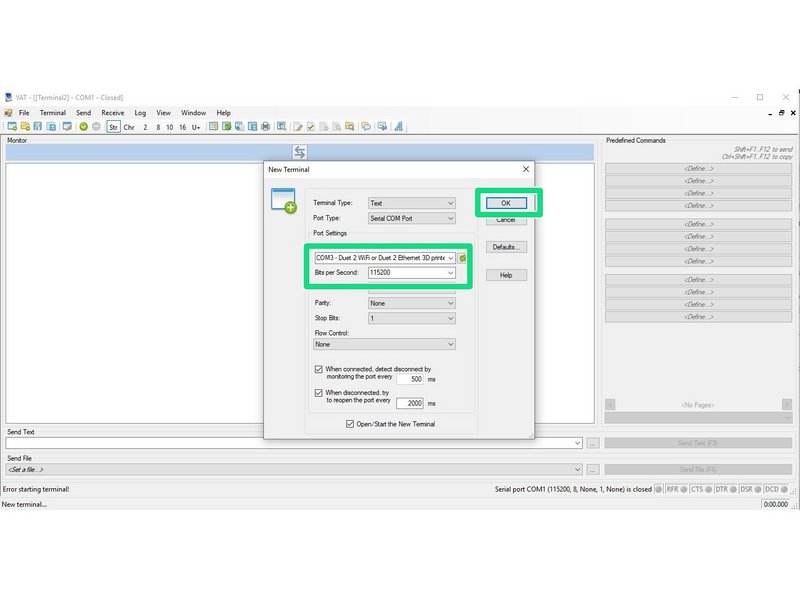
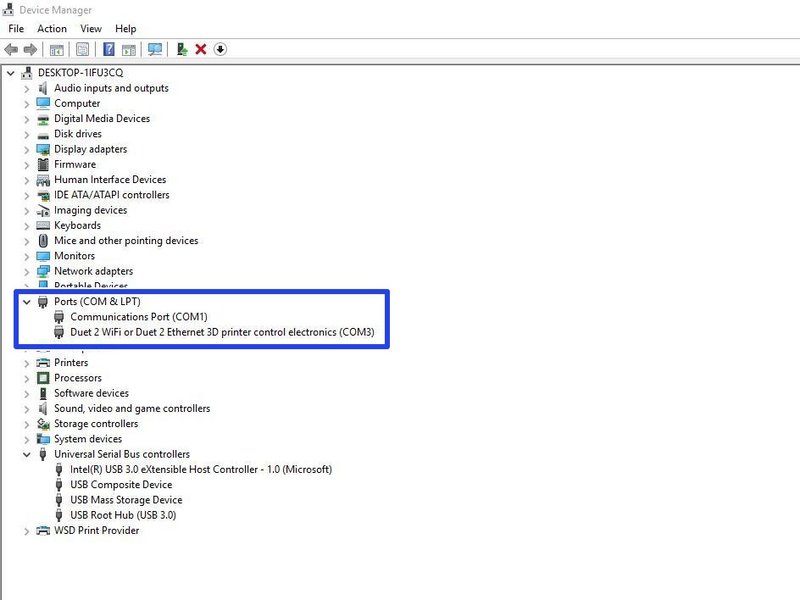
- Open SerialTools and configure the correct Serial Port.
- The correct Serial Port will be named something like 'usbmodem1411'
- Change the Baud Rate to 115200.
- Tick 'Local Echo'
- Once configured press Connect to connect to your Controller.
|
| Image |
Instructions |
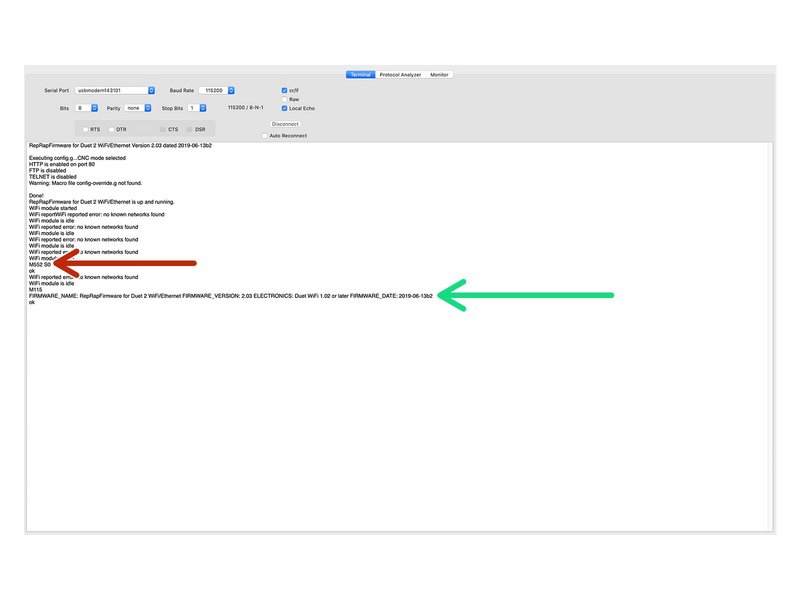 |
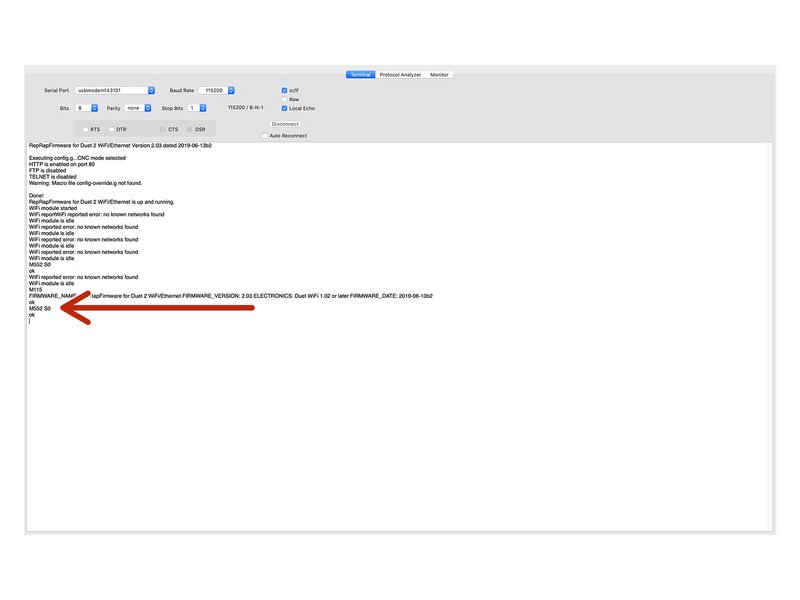
- Once connected SerialTools will continue scrolling 'WiFi reported error: no known networks found WiFi module is idle'
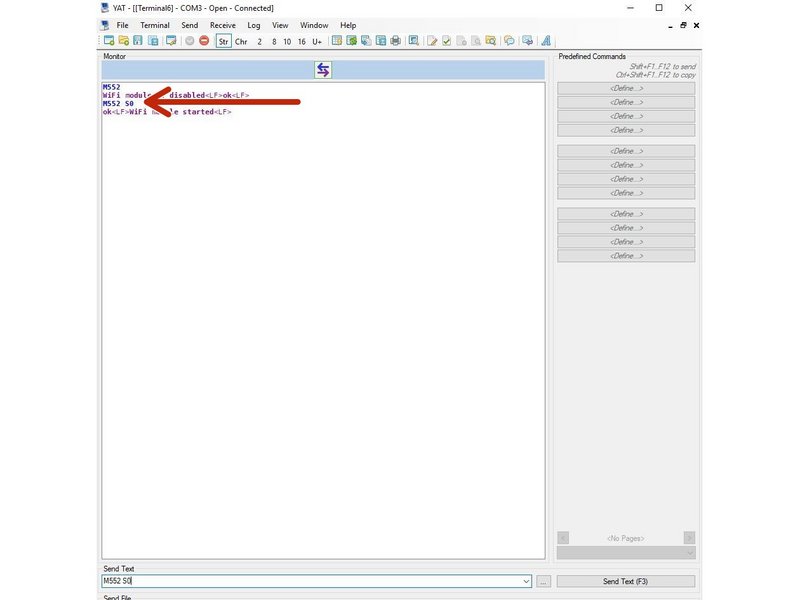
- To stop this, quickly type the command 'M552 S0' and press enter to send it to the Duet.
- The scrolling should stop.
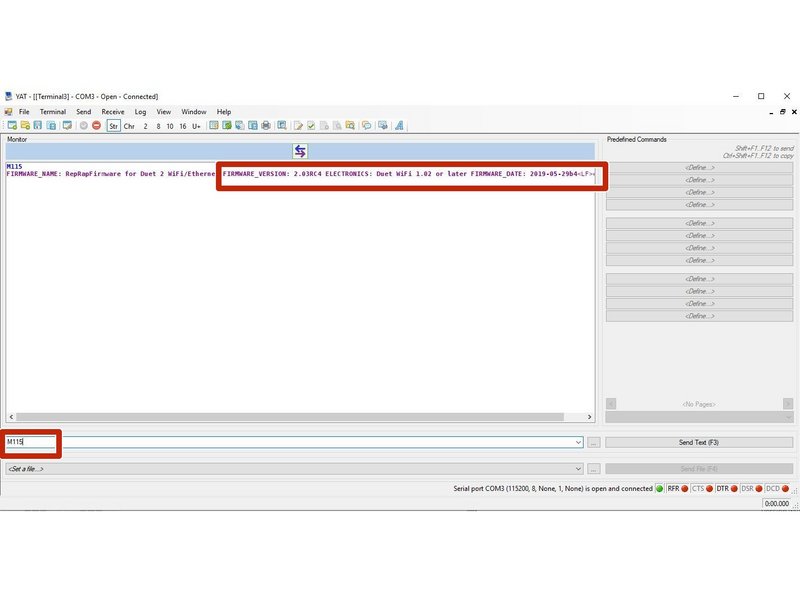
- Once the scrolling has stopped, type the command 'M115' and press enter to send it to the Controller.
- The Controller will return the firmware version being used, confirming the connection to the Controller.
- If on MacOS, on the top bar of the SerialTools application, go to Edit > Substitutions > Untick "Smart Quotes"
|
The WiFi module only supports 2.4Ghz networks. 5Ghz is not supported.
For Mac users, at certain points in these instructions, you will need to use double quotation marks in commands. Any double quotation marks must be sent as straight double quotation marks. To enable straight double quotation marks go to System Preferences > Keyboard > Text. Then under the Double Quotes drop down, select straight double quotations.
For Mac users please note copy/paste does not work with SerialTools.
For Mac users please note if you make an error when typing commands and have to use back space, it will not work, you have to type the commands correct first time.
| Image |
Instructions |
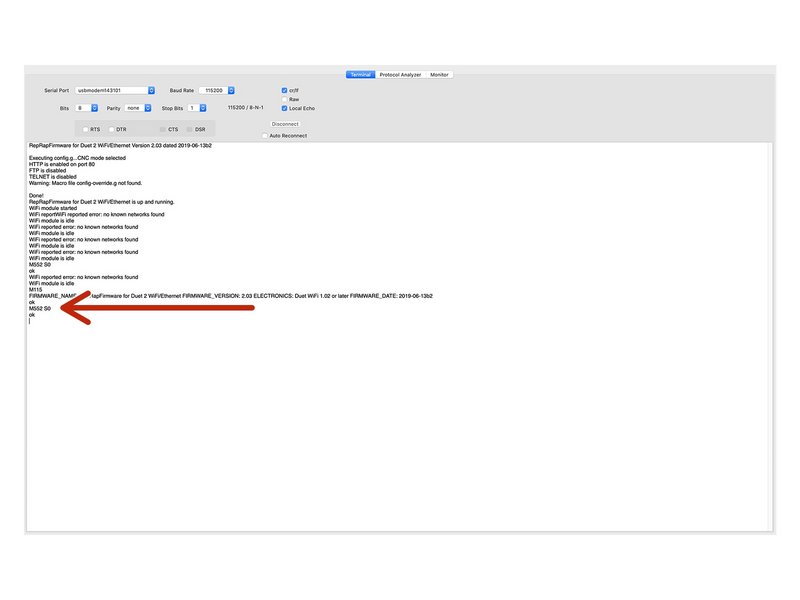 |
Send the command M552 S0 to put the Wifi Module into idle mode. |
| Image |
Instructions |
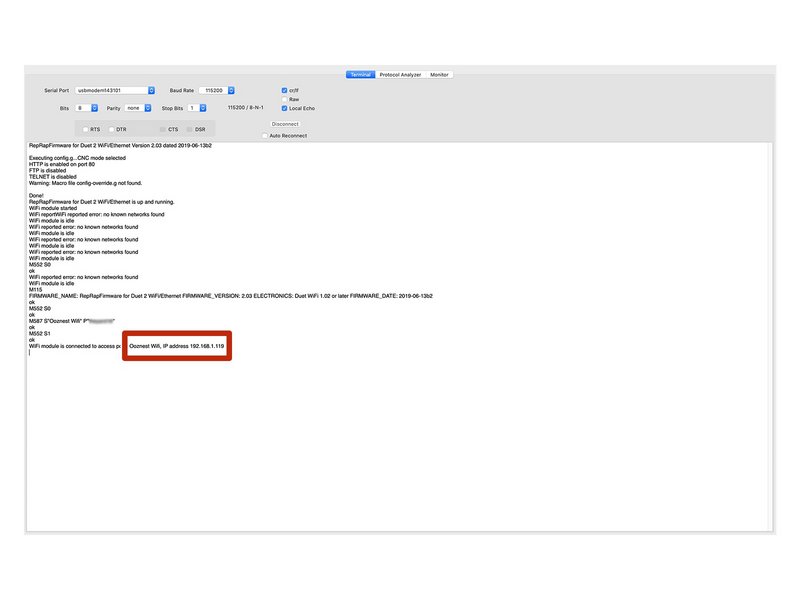 |
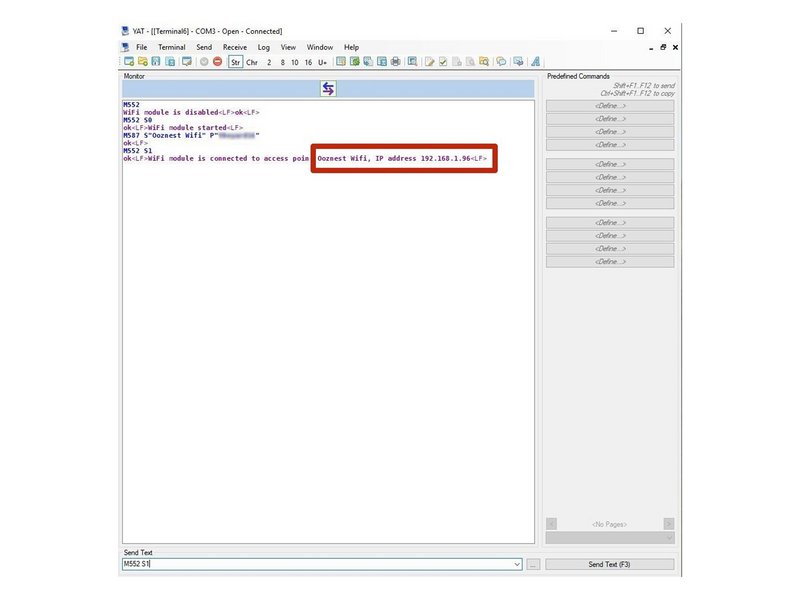
- Use the command M587 as shown below. Keep the double quotation marks, but substitute your-network-name with your Wifi SSID name and your-password with your WiFi password.
- M587 S"your-network-name" P"your-password"
- Enter the exact characters in your Wifi's SSID name and password. Both fields are case sensitive.
- If your SSID name contains an apostrophe, enter two apostrophe characters in its place. For example, if your SSID name is Pete's network then enter "Pete''s network".
- Send command M552 S1 to connect to your WiFi.
- After a moment, it will confirm the connection and IP address of the machine.
|
| Image |
Instructions |
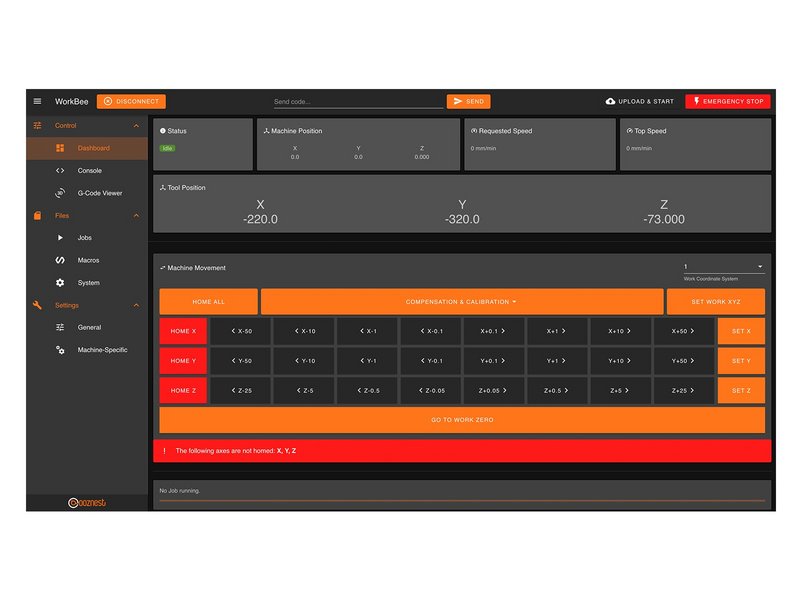 |
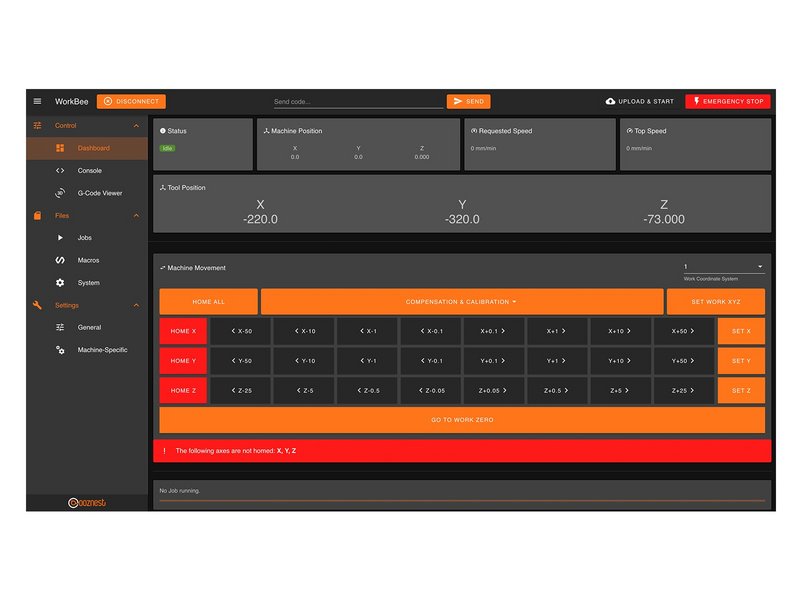
- Open your browser and enter the url: http://workbee.local/
- You should now see the WorkBee Control Interface!
- Bookmark the url and add it to your favourites for easier access in the future.
- If the above url does not work. Please use the IP Address returned in the previous step to connect to the machine. Bookmark this IP Address.
- Unplug the USB Cable from your computer and Controller. The WorkBee Control Interface will disconnect.
- Plug the Mains Cable into the Power Supply and then into the wall socket.
- Unlatch the Emergency Stop and turn on the wall socket.
- After a short delay, refresh the browser. It should reconnect to WorkBee Control.
|
| Image |
Instructions |
 |
|