Before following this guide, complete First Connection and Setup. Enable WiFi in the Configuration Wizard.
WiFi connections are supported only in the Ooznest Control desktop or mobile application. You cannot connect over WiFi using the browser application.
Adding WiFi later
- You do not need to run the Configuration Wizard again. Connect over USB and open Settings > Networking > WiFi.
- Set WiFi Mode to Station and enter your network's SSID and password exactly.
- Save the settings and check the Motion Control core's response.
After changing networking settings, fully power-cycle the Motion Control core: disconnect the USB cable, switch off controller power, then switch it back on. A soft reset is not sufficient.
¶ Step 1: Connect In Ooznest Control
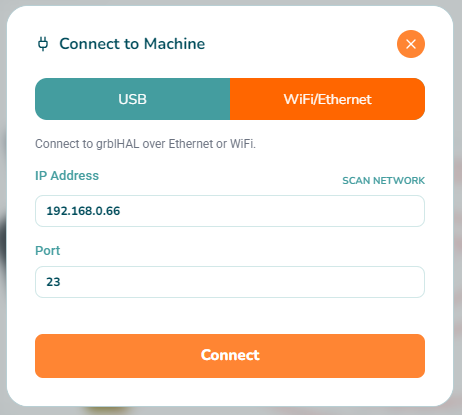
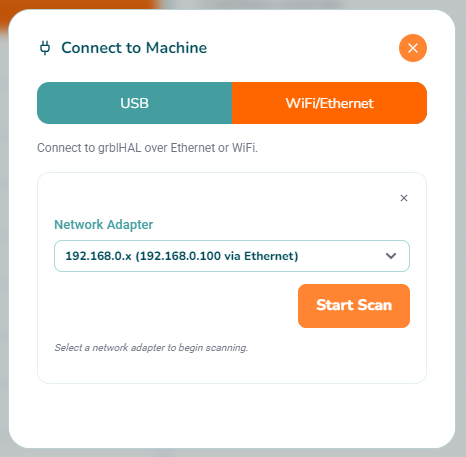
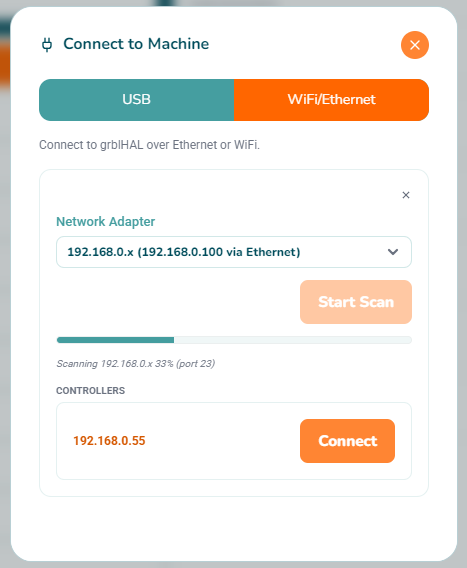
Use a 2.4 GHz WiFi network with a strong signal at the machine. Connect your computer or mobile device to the same WiFi network as the Motion Control core. Use your own network adapter and the Motion Control core's IP address; the screenshots show examples.
| Image | Instructions |
|---|---|
 |
|
 |
|
 |
|
¶ Setting A Static IP Address
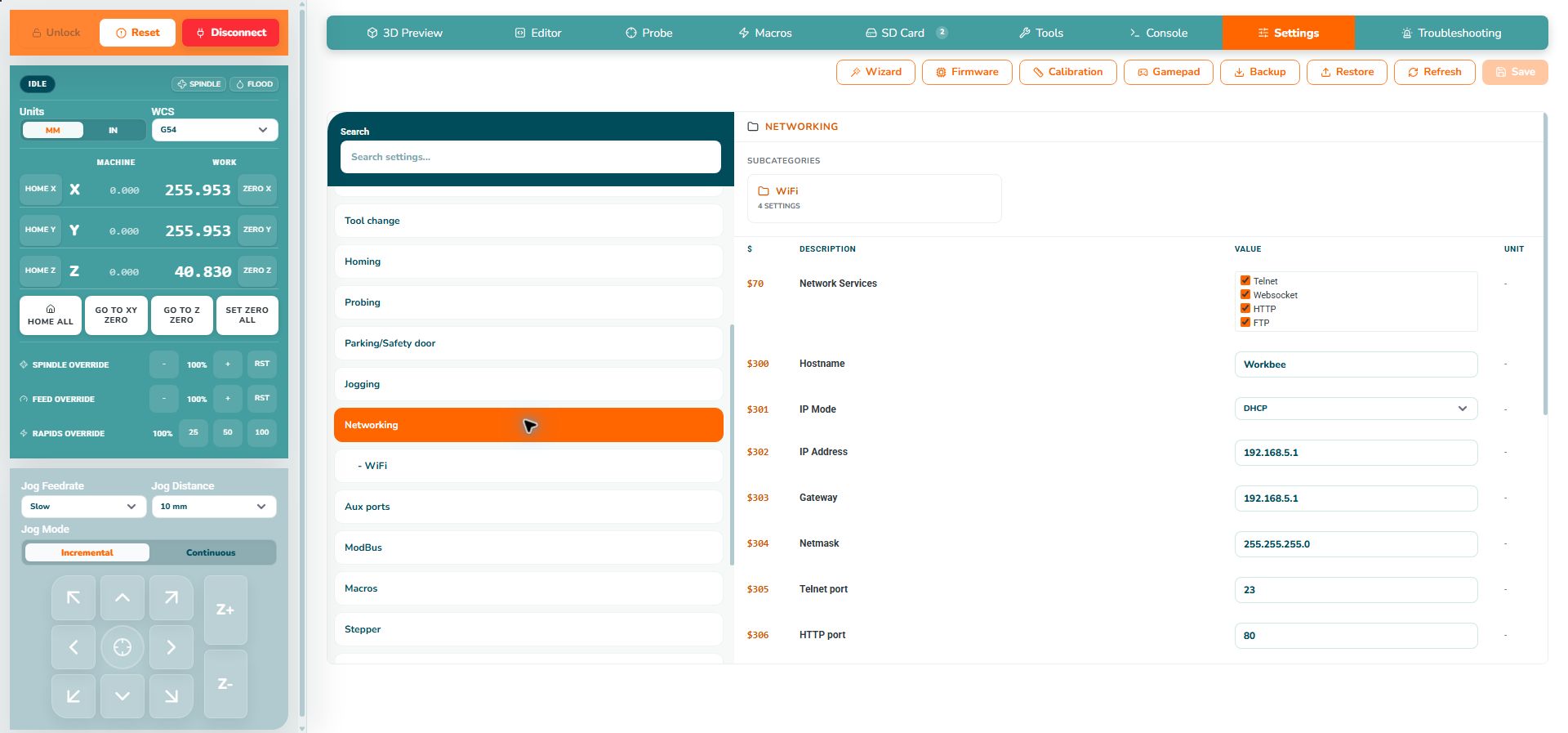
Use DHCP for most router networks. Your router assigns the Motion Control core an IP address. If you need a consistent address, you can set a DHCP reservation on your router instead of configuring a static address on the Motion Control core.
| Image | Instructions |
|---|---|
 |
|
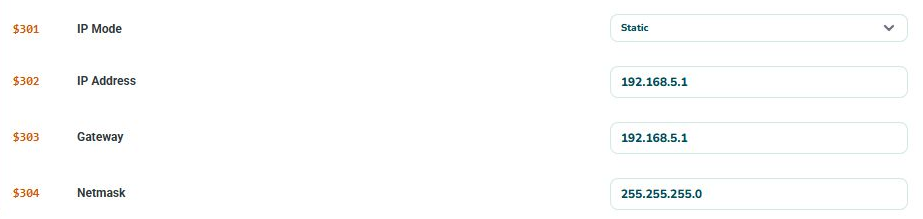 |
|