The Editor displays and edits the loaded program.
¶ Step 1: Load and identify the file
| Instructions |
Preview |
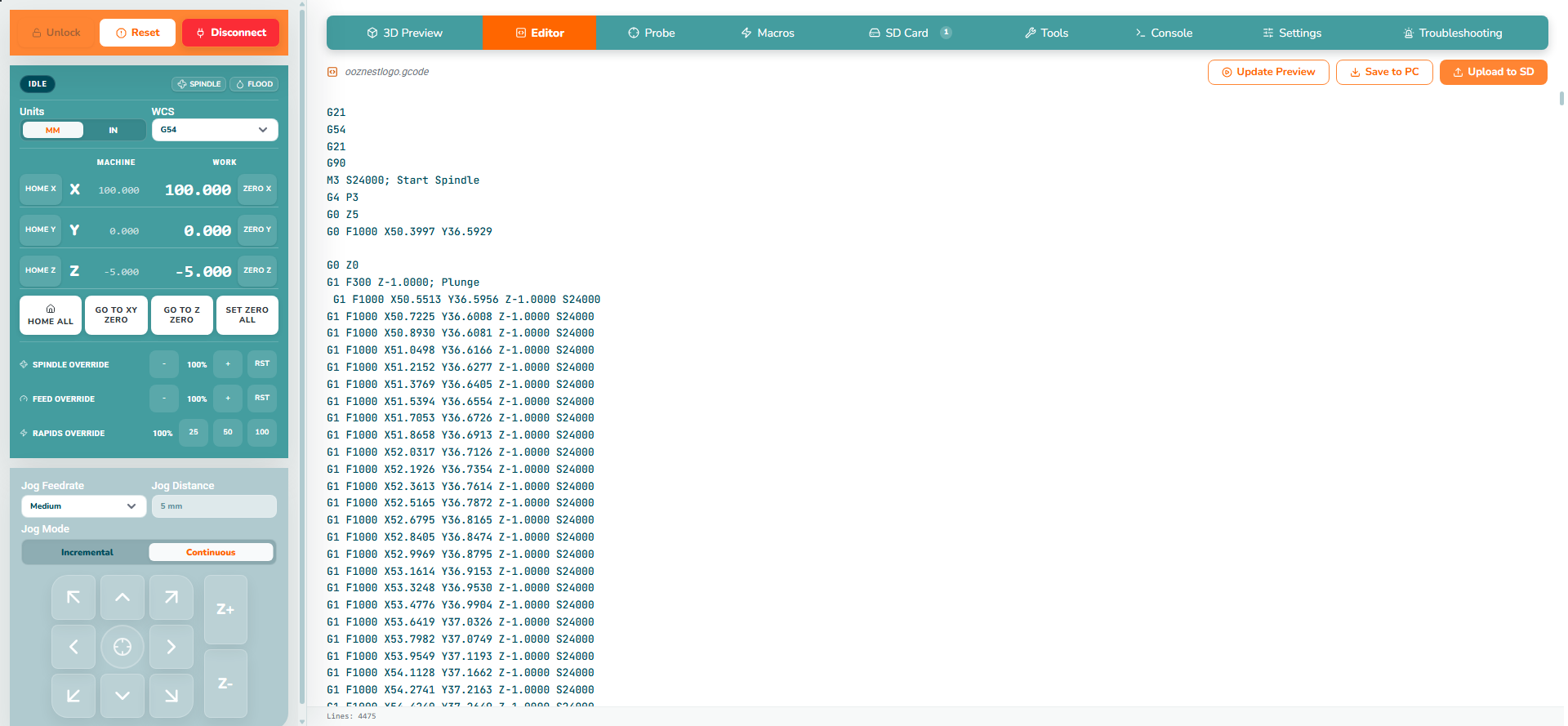
- Open the intended program using Open File in 3D Preview, then open Editor.
- Check the filename and program before editing. Keep an unchanged copy of the original.
|
 |
¶ Step 2: Edit and update the preview
| Instructions |
Preview |
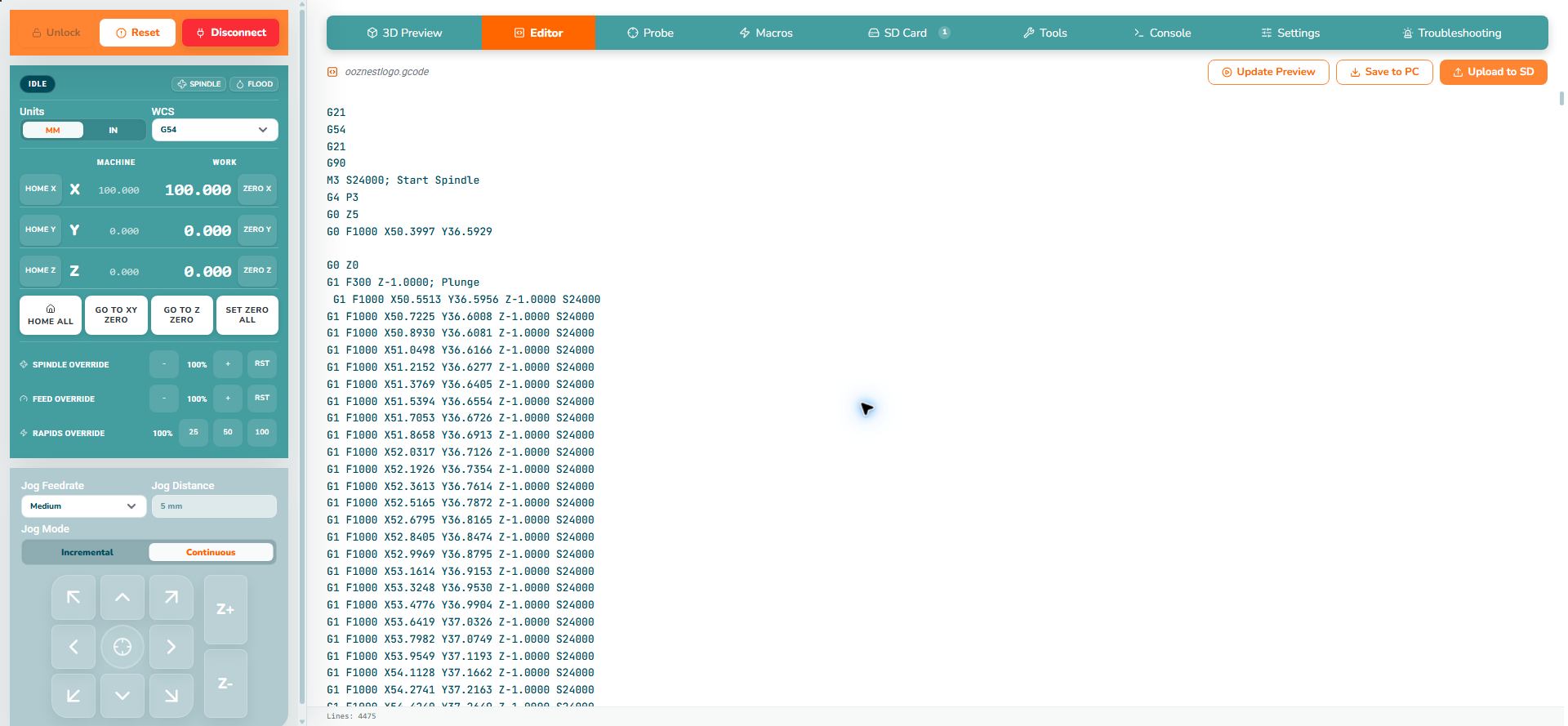
- Make the intended edit, then click Update Preview to load the edited text into 3D Preview.
- Do this after your final edit and before using Run Job, so the loaded program matches the text you reviewed.
- Inspect the refreshed path. Parsing successfully does not prove the physical setup is safe.
- Click Save to PC to download a copy. Check the downloaded filename and keep the intended version; this does not overwrite the original file on your computer automatically.
|
 |
Change an existing descriptive comment, for example (Spoilboard) to (Spoilboard - reviewed), without changing any command lines. Click Update Preview: the toolpath should remain unchanged. Save the copy and reopen it to confirm the edited comment is present. This practises the edit/save workflow without deliberately changing machine movement.
| Instructions |
Preview |
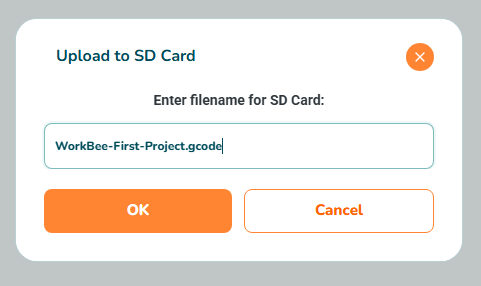
- Upload to SD transfers the editor contents to the controller's SD card. Follow the upload dialog and wait for completion.
- Open SD Card, refresh the listing and verify the intended file is present.
- Follow the SD Card guide to review and run it.
- Before either run method, check work zero, cutter, clamps, clearance and spindle operation.
|
 |
Continue to First Job.