The optional Ethernet Module is required to use an Ethernet connection with the Motion Control core. Follow Step 10: Optional Ethernet Module in the wiring guide to install it.
Before following this guide, complete First Connection and Setup. Do not enable WiFi in the Configuration Wizard.
Ethernet connections are supported only in the Ooznest Control desktop or mobile application, not the browser application. A direct Ethernet connection to your computer requires the desktop application; the mobile application can connect only when the Motion Control core is connected to your local network.
After changing networking settings, fully power-cycle the Motion Control core: disconnect the USB cable, switch off controller power, then switch it back on. A soft reset is not sufficient.
Follow this step only if you are connecting the Motion Control core directly to your computer's Ethernet port. If you are connecting it to your local network via Ethernet, keep your computer's existing network settings and go straight to Step 2: Connect In Ooznest Control.
WindowsmacOS
| Image |
Instructions |
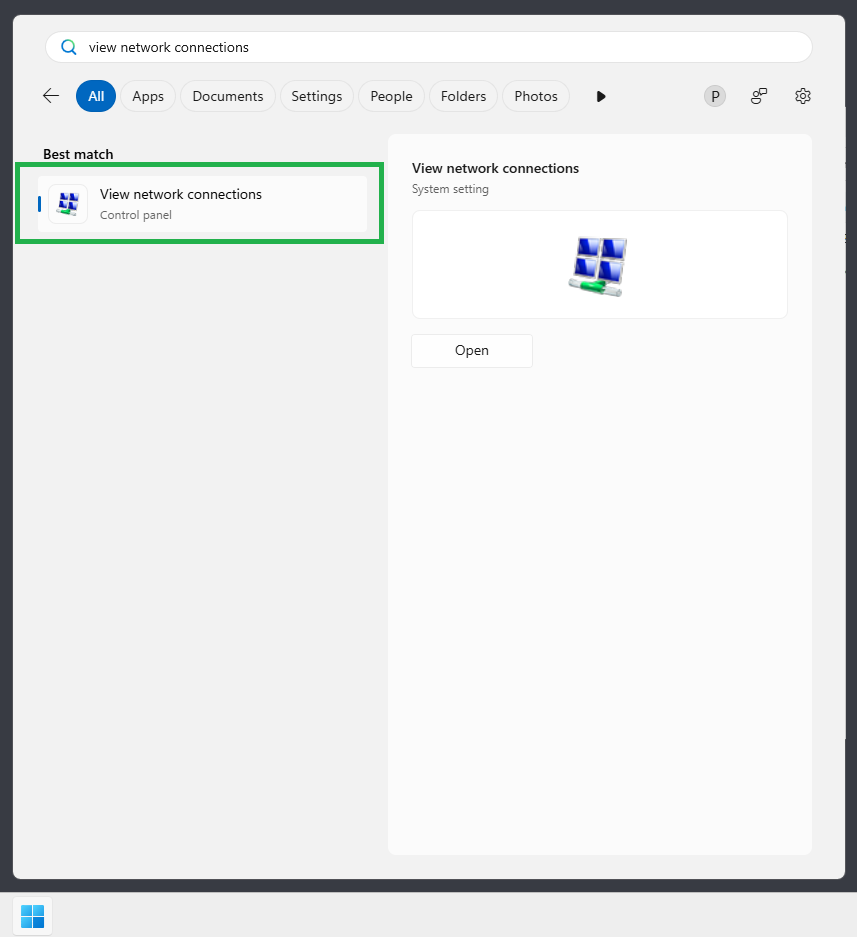 |
- Open Start and type view network connections.
- Select View network connections (Control Panel).
|
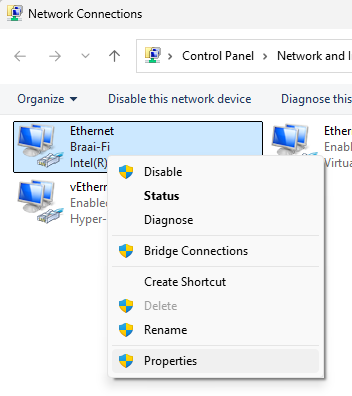 |
- Find the Ethernet adapter connected to the Motion Control core.
- Right-click it and select Properties.
|
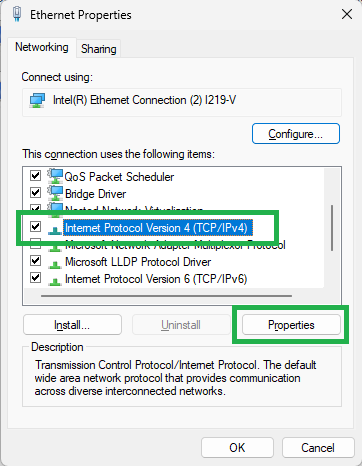 |
- Select Internet Protocol Version 4 (TCP/IPv4).
- Click Properties.
|
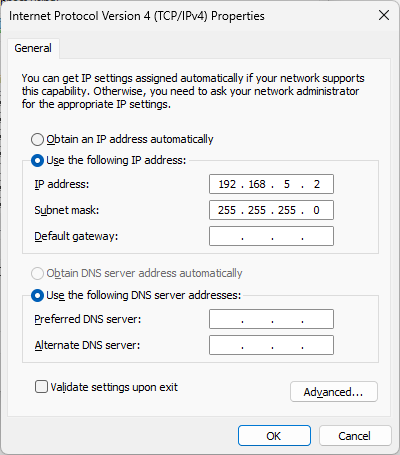 |
- Select Use the following IP address.
- Enter 192.168.5.2 for the IP address and 255.255.255.0 for the subnet mask.
- Leave Default gateway and both DNS fields blank.
- Click OK.
|
| Image |
Instructions |
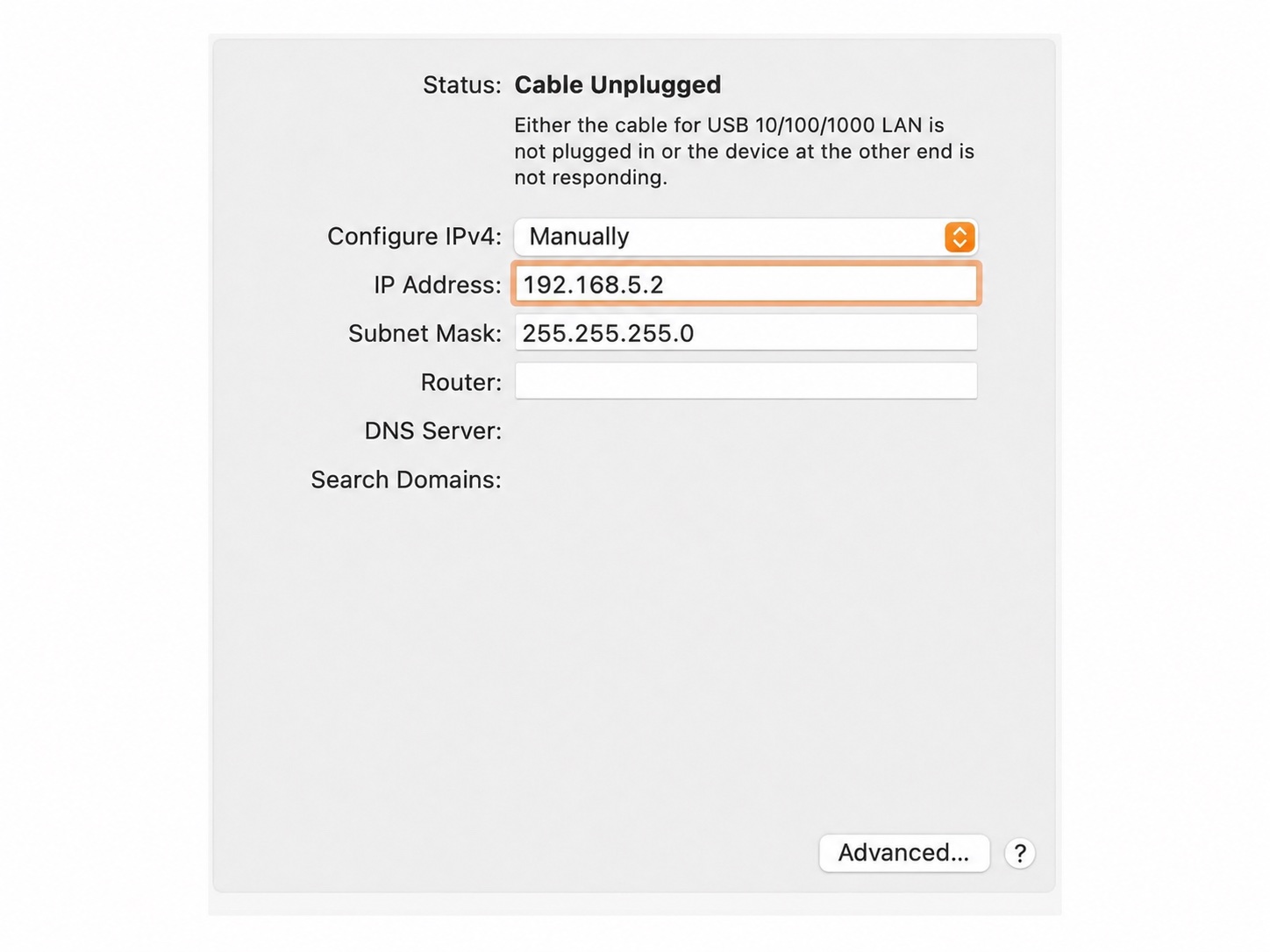 |
- Open System Settings > Network.
- Select Ethernet > Details > TCP/IP.
- Set Configure IPv4 to Manually.
- Enter 192.168.5.2 for the IP address and 255.255.255.0 for the subnet mask.
- Leave Router blank and confirm the changes.
|
For a direct connection, use the IP address 192.168.5.1. If you are connecting over your local network, use the Motion Control core's IP address, or use Scan Network to find it by following the steps below.
| Image |
Instructions |
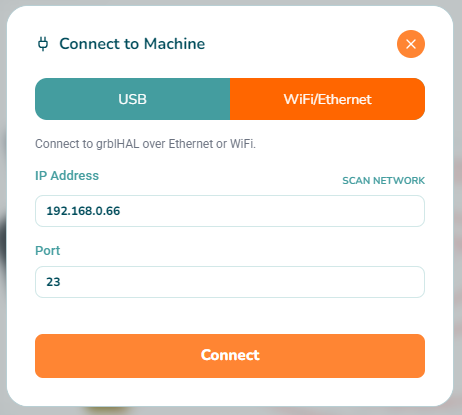 |
- Open Ooznest Control.
- Click Connect, then select the WiFi/Ethernet tab.
- For a direct connection, enter 192.168.5.1. For a connection over your local network, enter the Motion Control core's IP address.
- If you do not know the Motion Control core's IP address, click Scan Network, then follow the steps below.
- Use Telnet port 23, then click Connect.
|
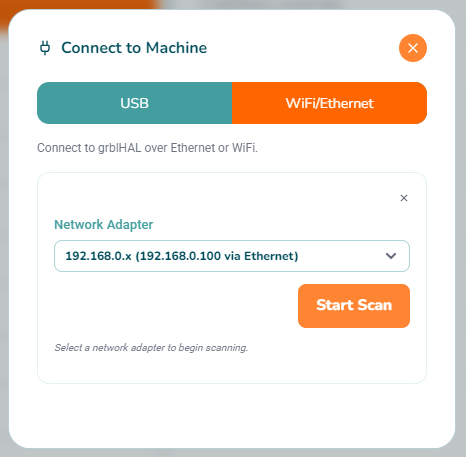 |
- Select the Ethernet adapter connected to the Motion Control core.
- Click Start Scan.
|
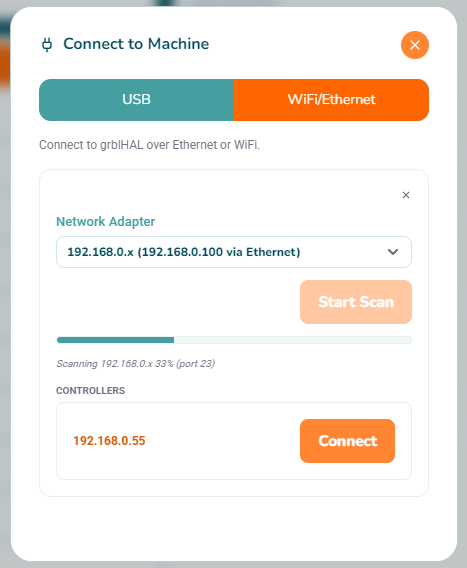 |
- Find the Motion Control core in the scan results.
- Check its IP address, select it, then click Connect.
|
Use DHCP for most router networks if your Ethernet firmware offers it. Your router assigns the Motion Control core an IP address. If you need a consistent address, you can set a DHCP reservation on your router instead of configuring a static address on the Motion Control core. If Ethernet DHCP is unavailable, use a static address that matches your network.
| Image |
Instructions |
 |
- Connect to the Motion Control core over USB.
- Open Settings > Networking and find the Ethernet settings.
- In IP Address ($322), enter an unused address on your router's subnet and outside its DHCP pool.
- In Gateway ($323), enter your router's LAN IP address.
- In Netmask ($324), enter your network's subnet mask.
- Use settings that match your network; the screenshot shows the direct-connection defaults. For a direct connection, retain 192.168.5.1 as the Motion Control core's address and follow the computer settings in Step 1. Ask your network administrator if you are unsure.
- Save the settings, then fully power-cycle the Motion Control core as described in the warning above.
|
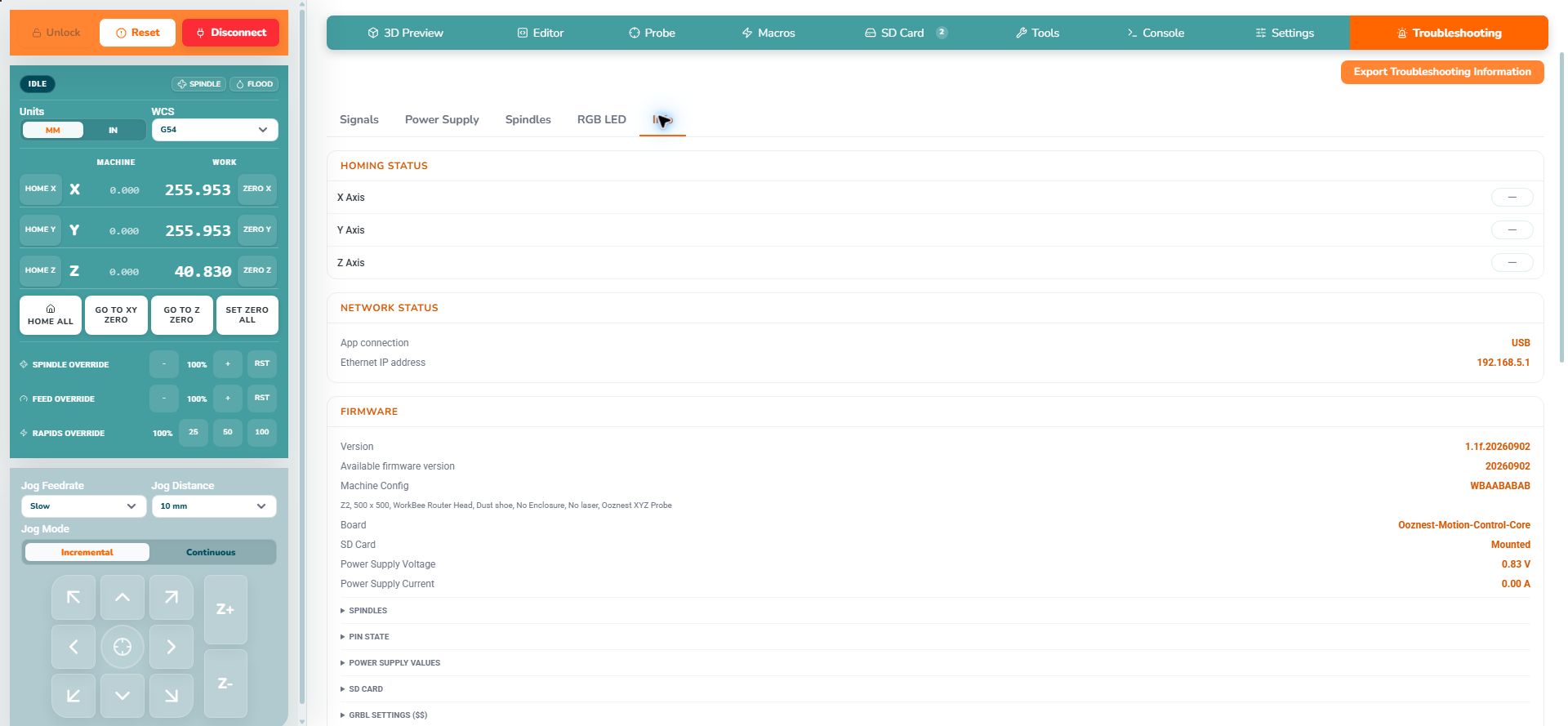 |
- Reconnect over USB and open Troubleshooting > Info > Network Status to check the Motion Control core's Ethernet IP address.
- Use this address when connecting through Ethernet in Ooznest Control. The screenshot shows the direct-connection address 192.168.5.1.
|