¶ Main screen
The main screen contains the controller state, digital readout (DRO), jog panel and job controls. Tabs open the other application features.
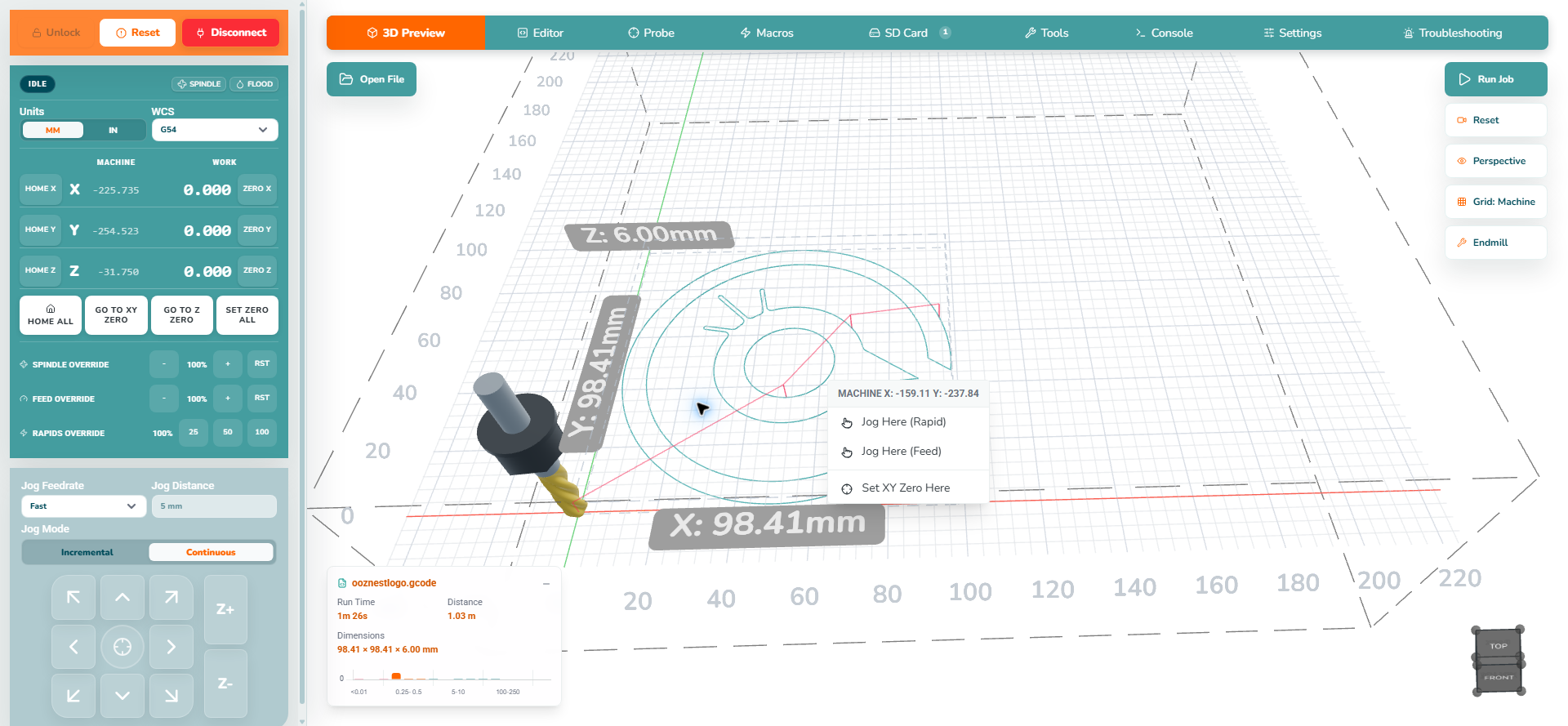
The 3D view shows the loaded G-code toolpaths, machine extents and work-coordinate grid. It is a preview, not a check of the physical workholding or cutter.
¶ On a phone
| Instructions | Preview |
|---|---|
| In the Android app, tap the three-line button in the upper left to switch between machine controls and the workspace. Use the arrows at either end of the workspace tab bar to reach more tabs. | 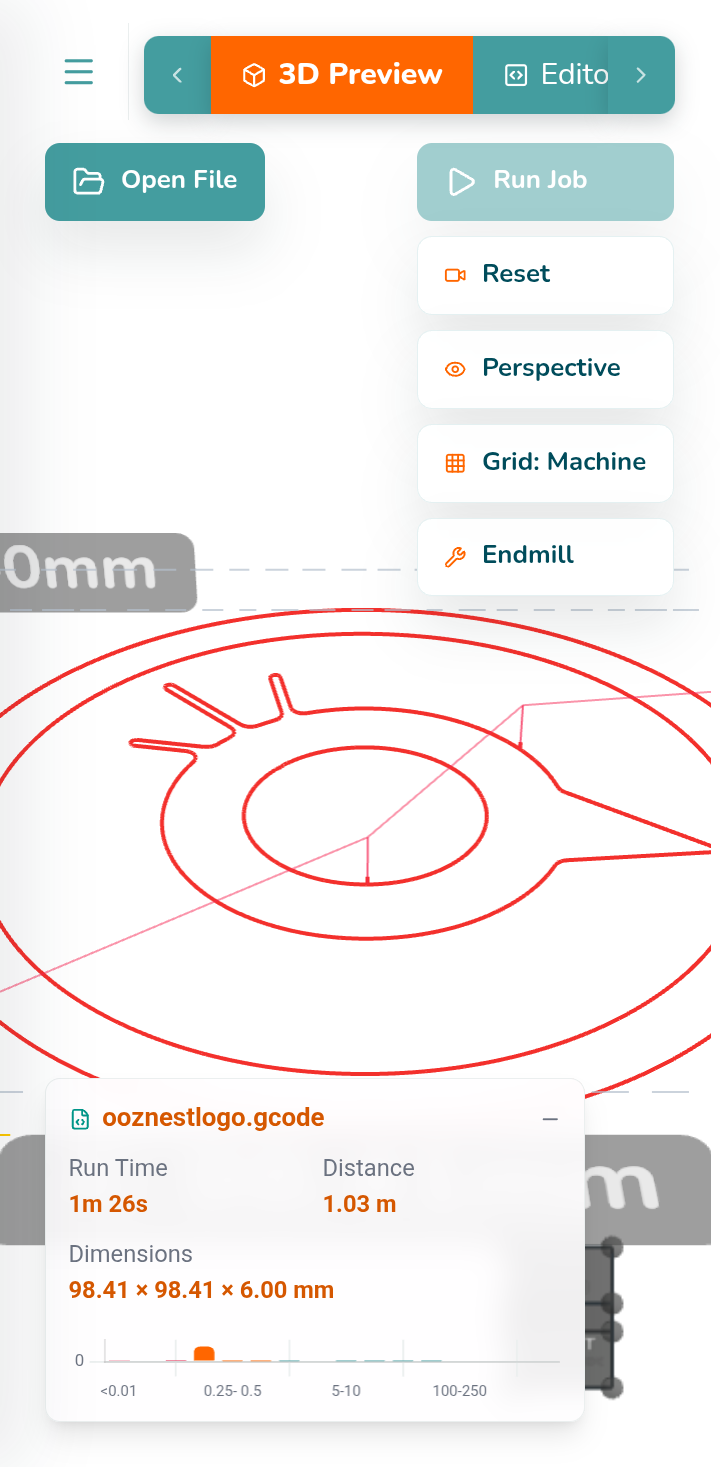 |
¶ DRO and work coordinates
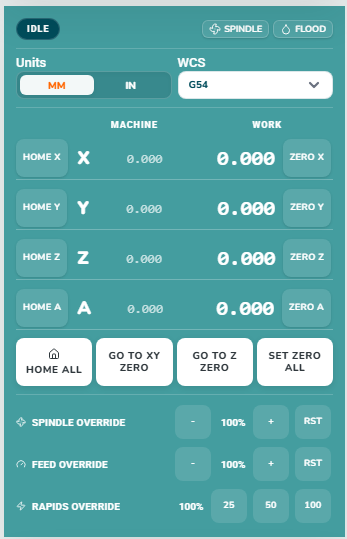
Machine coordinates locate the machine relative to its homed reference. Work coordinates locate the cutter relative to the job origin in the active work coordinate system (WCS), normally G54. Homing establishes the machine reference; setting work zero establishes the job reference.
Zero controls change work coordinates without moving. Go to Zero controls move the machine: raise clear of material and clamps, and check the full path first. Go to Z Zero moves to the job's Z reference, often the material surface.
Override − / + / RST controls reduce, increase or reset spindle/feed overrides. Rapid presets select 25%, 50% or 100% of rapid speed. These affect real operation, not just the preview.
| Instructions | Preview |
|---|---|
|
 |
¶ Jog panel
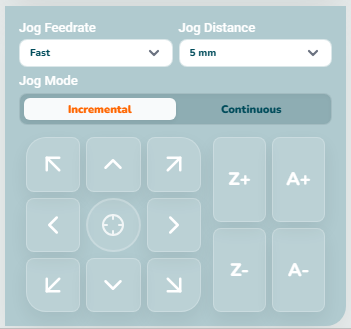
Start with Slow feedrate, Incremental mode and a small distance near stock or clamps. The centre symbol is a visual reference, not a homing control. XY diagonals combine the two displayed directions; Z+ and Z− move only Z.
| Instructions | Preview |
|---|---|
|
 |
¶ 3D Preview
Drag with the left mouse button to orbit/tilt, drag with the right mouse button to pan, and use the scroll wheel to zoom. On a touch screen, use one finger to orbit and two fingers to pan/pinch-zoom. These controls change the view, never machine position.
Use Reset to restore the preview framing, or select a face of the view cube for an aligned view. Endmill changes the displayed tool model; it does not change the physical cutter or the G-code's feeds, speeds or dimensions.
¶ Camera modes
The camera button cycles through Perspective, Orthographic, and Spindle View. It changes only the preview.
| Camera mode | Preview |
|---|---|
| Perspective is the normal angled 3D view. Use it to understand height, clearances and the overall toolpath. | 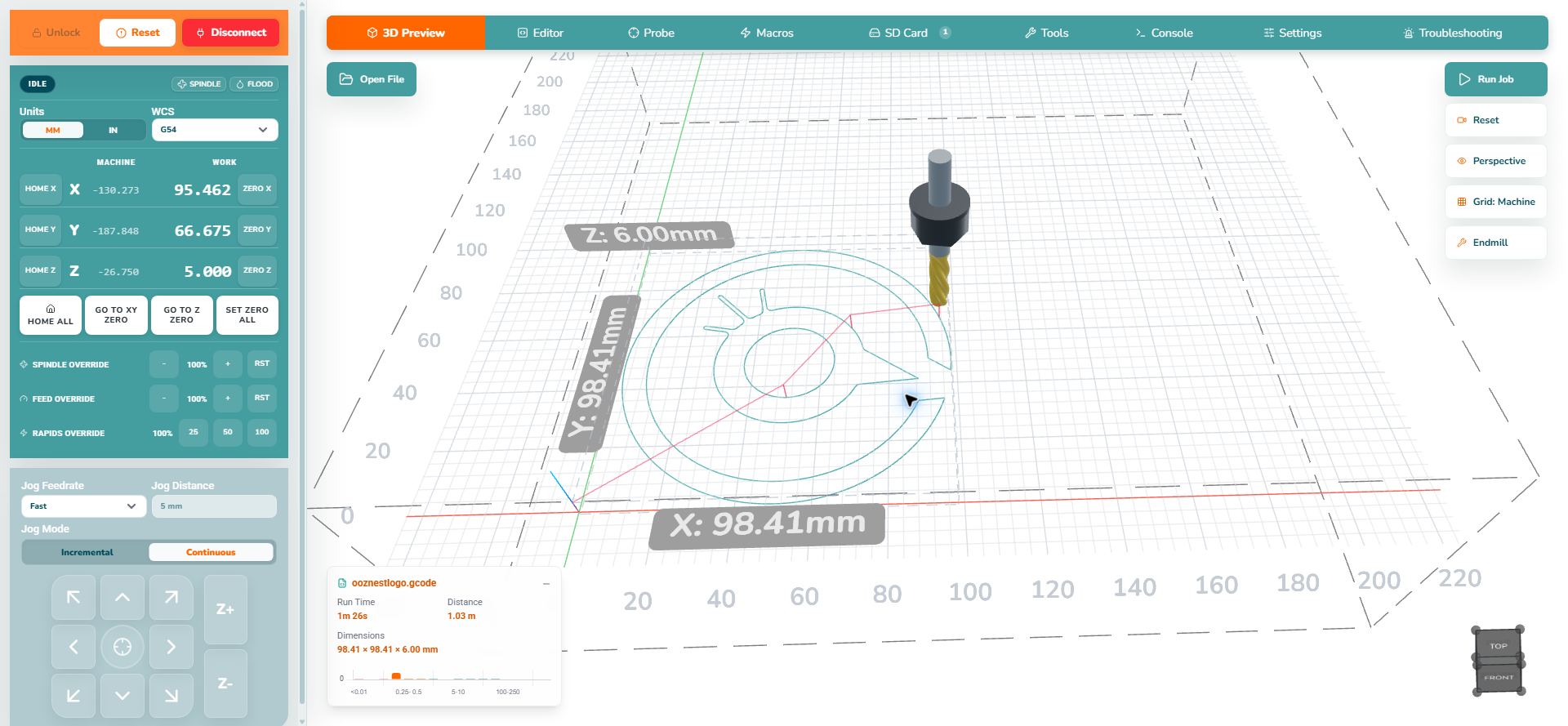 |
| Orthographic removes perspective distortion. Use it to inspect the G-code and compare parallel edges without apparent convergence. | 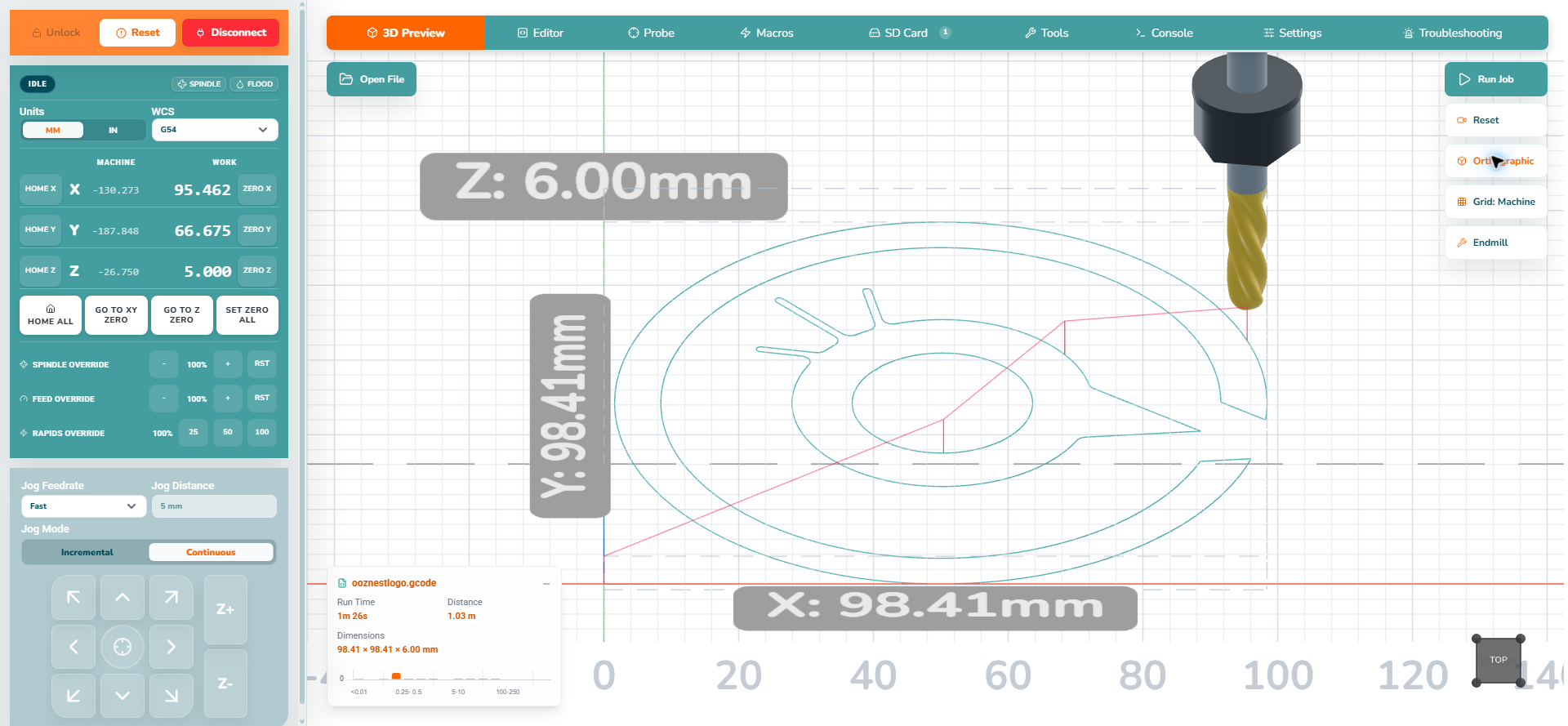 |
| Spindle View follows the displayed spindle position through the program. You can still orbit and zoom. | 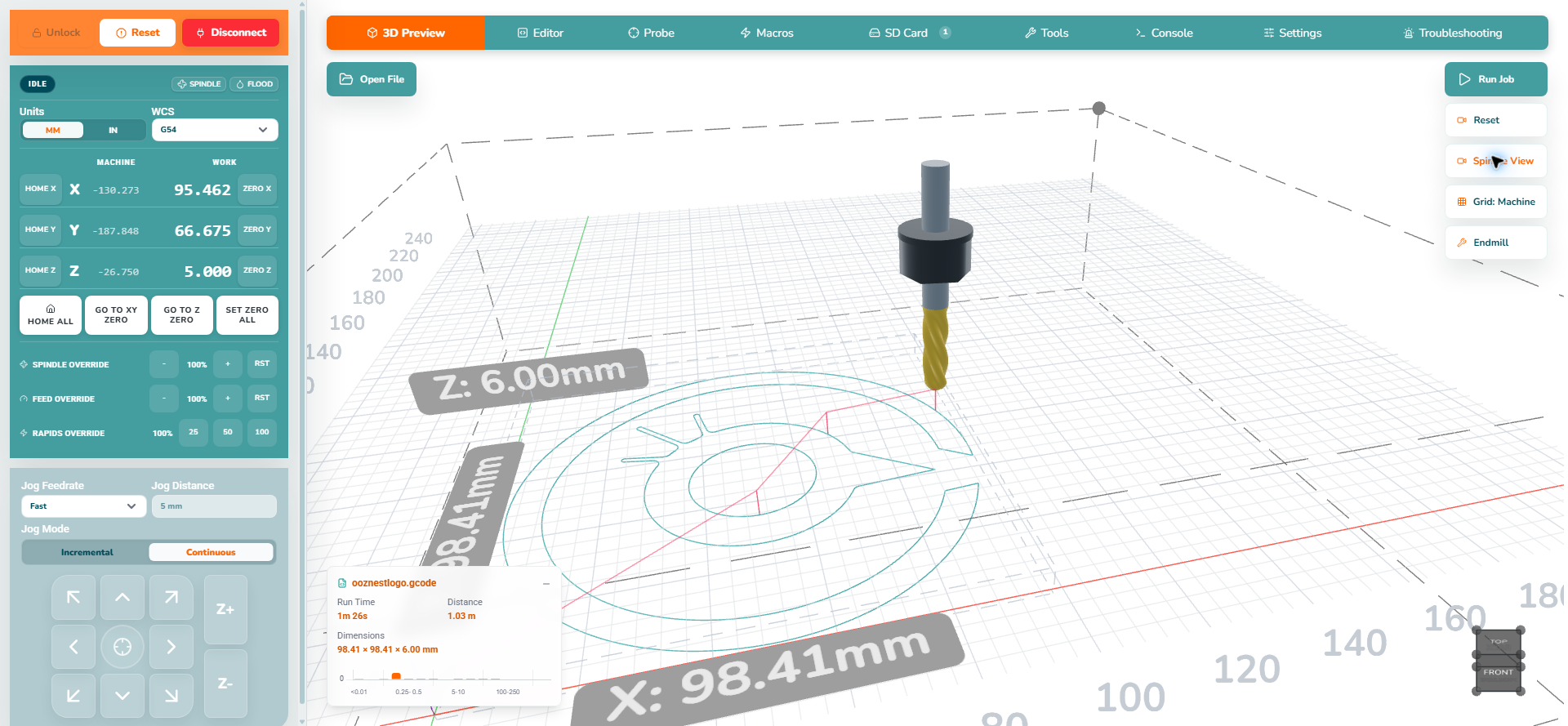 |
¶ Grid reference
The grid button changes only the preview camera and grid reference; it never moves the machine or alters the loaded G-code.
| Grid reference | Preview |
|---|---|
| Grid: Machine spans the configured machine workspace. Use it to see the available travel area in relation to the loaded job. | 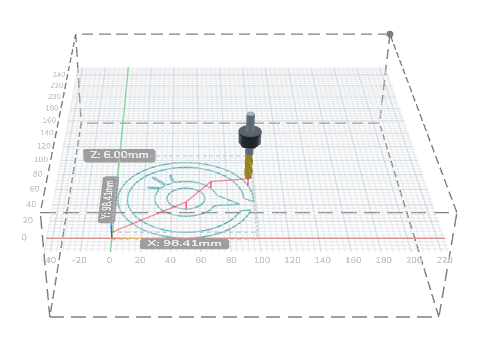 |
| Grid: Job is fitted around the loaded program with a margin. Use it to inspect the toolpath closely without the unused machine area dominating the view. | 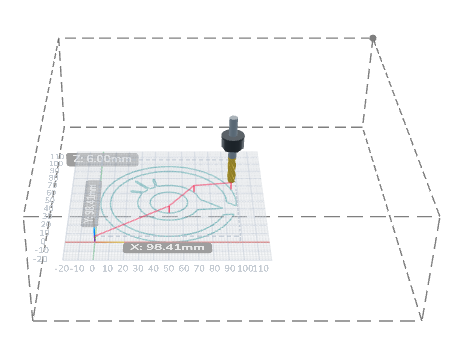 |
¶ Job statistics
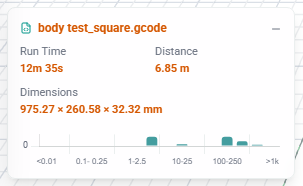
The Job Statistics card provides a quick summary of the loaded G-code file.
| Instructions | Preview |
|---|---|
|
 |
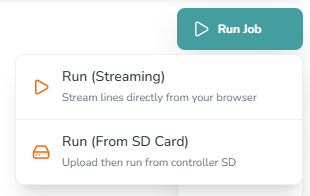
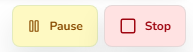
¶ Job controls
| Instructions | Preview |
|---|---|
|
 |
|
 |
¶ Job progress
| Instructions | Preview |
|---|---|
|
 |
¶ Next steps
Continue to First Connection and Setup for a new controller, or First Job for a configured machine.