¶ Surfacing
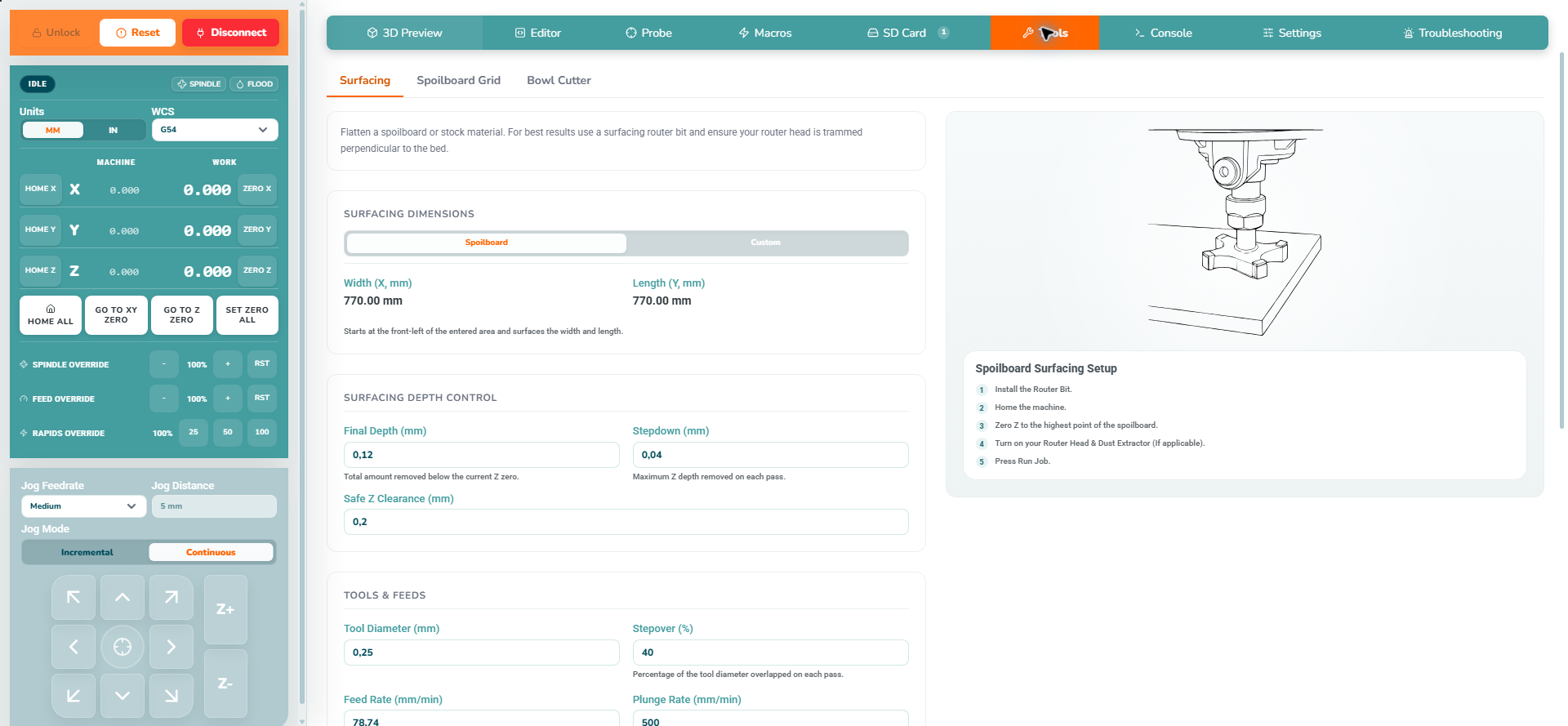
Use Tools > Surfacing to level stock or a spoilboard by removing a controlled amount of material.
Screenshot values are examples. Choose cutting values for your actual cutter and material.
¶ Before you start
- Secure the material and fit a suitable surfacing cutter with the spindle isolated.
- Keep screws, clamps and other obstacles outside the complete cutter sweep, including any framing pass.
- Check router tram and extraction. Surfacing does not correct a spindle that is tilted relative to the machine.
- Allow enough Z travel for the cut and clearance moves.
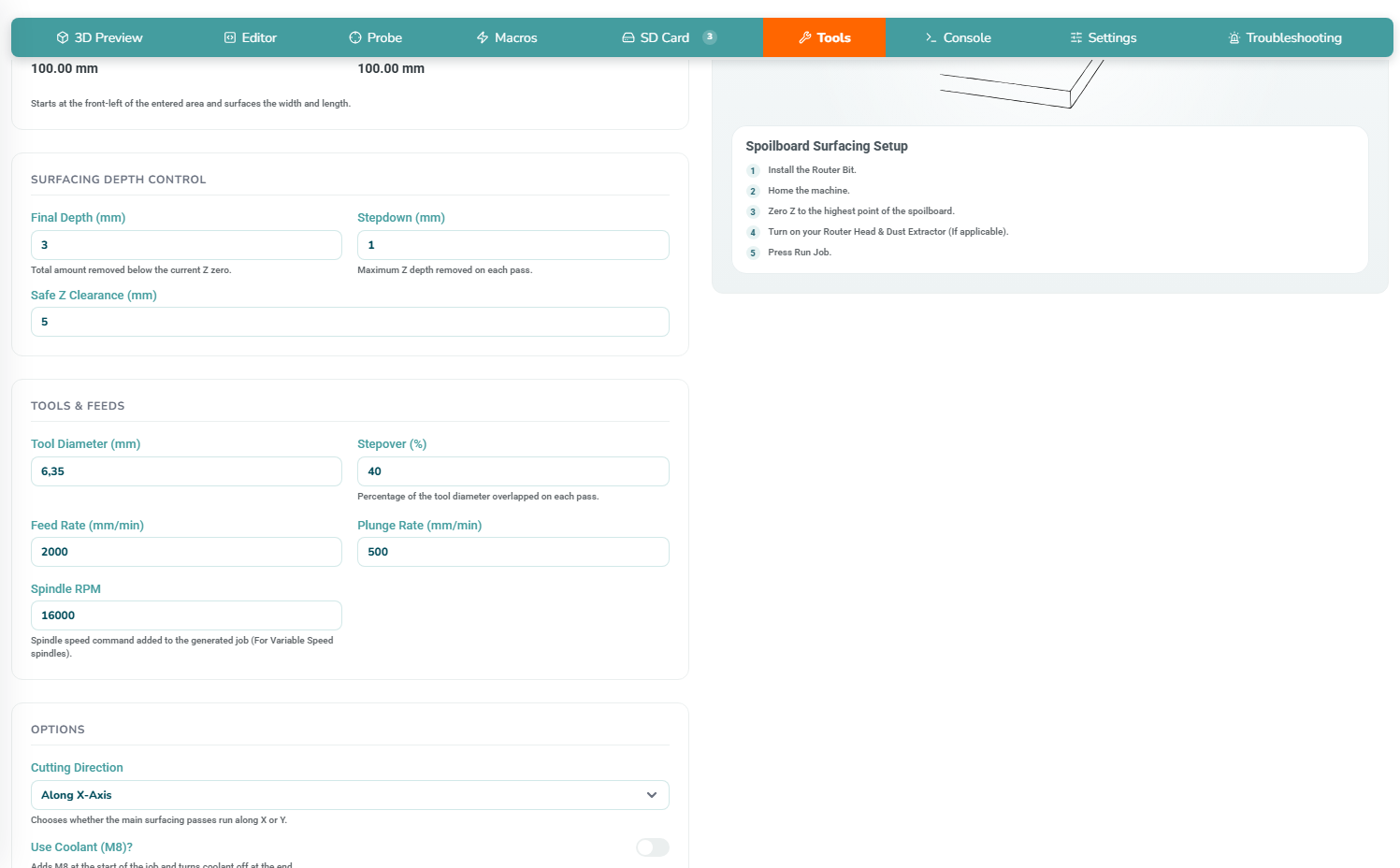
- Select G54 before setting or probing work zero. The generated job uses G54, and clearance height is measured from G54 Z zero.
¶ Step 1: Choose the operation
| Instructions | Preview |
|---|---|
|
 |
|
 |
¶ Step 2: Set depth, clearance and cutting values
| Instructions | Preview |
|---|---|
|
 |
|
 |
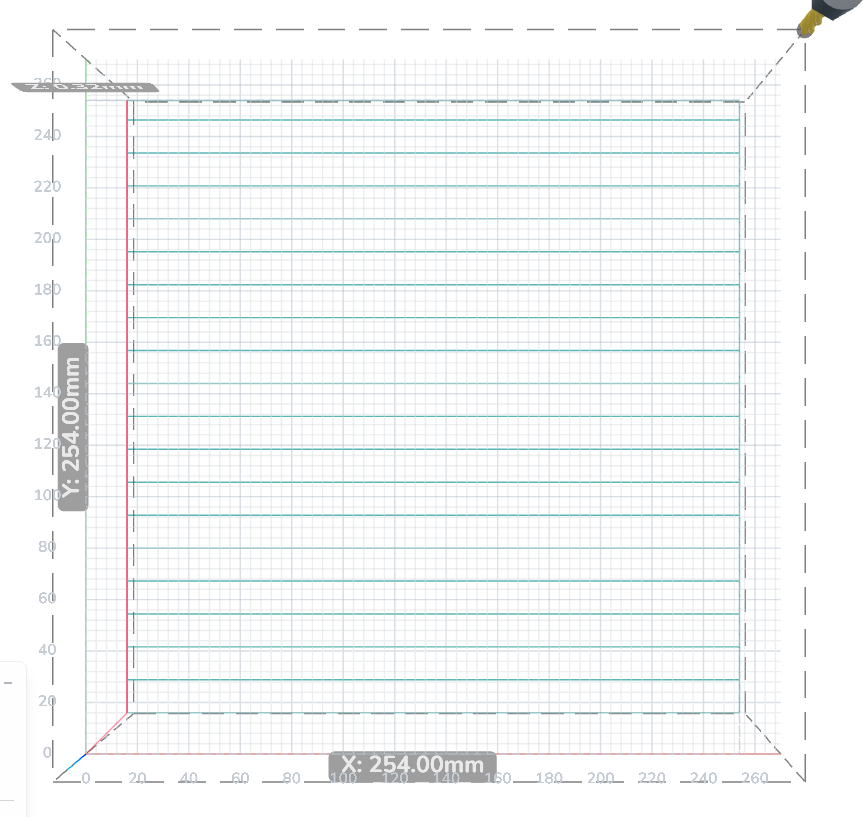
¶ Step 3: Generate and inspect
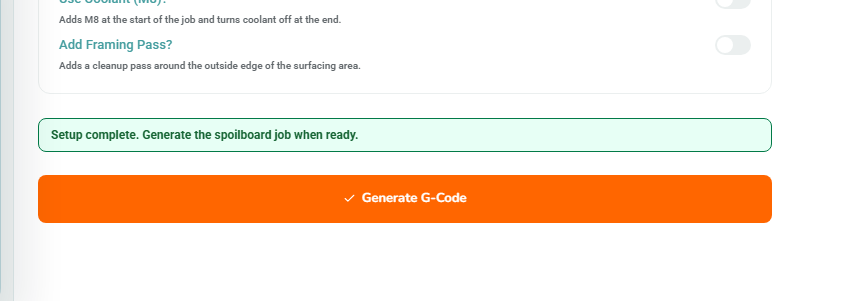
In Spoilboard mode, Generate G-Code writes the calculated G54 X/Y offset to the connected controller, and includes the origin-setting command in the generated file. Check the machine reference and intended spoilboard origin before generating. This is not a preview-only action.
| Instructions | Preview |
|---|---|
|
 |
|
 |
¶ Step 4: Run the program
- For a manual router, set its speed and start it before running. For a correctly configured controlled spindle, check the generated speed/start commands and that the spindle reaches speed before cutting.
- Start extraction, click Run Job > Run (Streaming) and read the confirmation before approving. Keep the computer connected.
- Watch the first rapid move, plunge and pass. Use the First Job controls if you need to pause or stop.
¶ Step 5: Finish and inspect
Wait for IDLE and for all machine motion to finish. Switch off a manually controlled router. Wait for the cutter to stop completely, then isolate power before cleaning or handling the cutter or workpiece.
Clean the spoilboard and inspect the full area. Untouched patches mean the pass has not reached every low spot; check remaining spoilboard thickness before deciding on another pass. Ridges between passes can indicate a tram or cutter problem—investigate rather than repeatedly increasing depth.
¶ Next steps
Once the surface is suitable, use Spoilboard Grid to add reference markings. Re-establish the job's work zero before cutting new stock.